

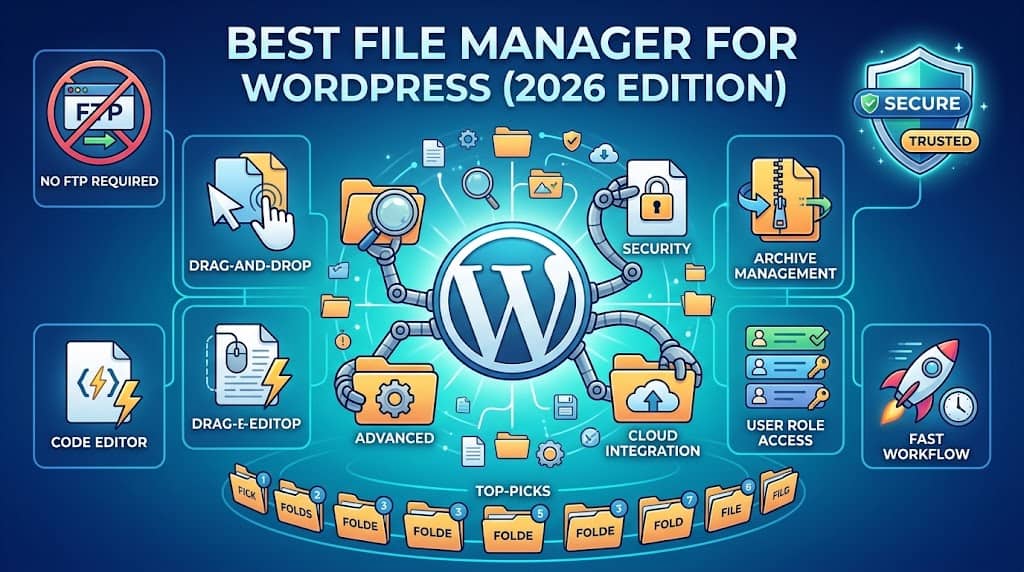
Managing files directly from the WordPress dashboard is one of those things that sounds simple until you actually need to do it. Most WordPress site owners discover the hard way that the default admin panel gives you almost no control over your server’s file system. That is where a dedicated file manager for WordPress steps in, eliminating the need for FTP clients, cPanel file managers, or SSH access entirely.
Whether you need to quickly edit a functions.php file, upload a custom script, reorganize your media uploads folder, or view server logs without leaving WordPress, the right plugin makes all of this possible in seconds.
In this guide, we have tested and ranked the 10 best WordPress file manager plugins available in 2026. We break down what each one does well, where it falls short, who it is best suited for, and what to watch out for, so you can make an informed decision without wading through a dozen plugin pages.
Why Every WordPress Site Owner Needs a File Manager Plugin
WordPress’s core file editor lets you modify PHP files, but it is painfully limited. You cannot browse directories freely, upload arbitrary files, create folders, move files between directories, or archive content for backup purposes.
The typical alternative is using an FTP client like FileZilla. While powerful, FTP requires a separate desktop application, your server credentials, knowledge of directory structures, a stable internet connection, and being on your own device. A good file manager plugin for WordPress solves all of this. You get a full-featured file browser right inside your WordPress admin, accessible from any device with a browser.
- Browse and navigate your server’s directory structure visually
- Upload files via drag-and-drop from your desktop
- Edit code files with syntax highlighting directly in the browser
- Create, rename, move, copy, and delete files and folders
- Compress and extract zip archives without leaving WordPress
- Manage file permissions (chmod) from a simple interface
What to Look for in a WordPress File Management Plugin
Not all file management plugins are created equal. When comparing options, these criteria matter most:
Security Controls
Root path restriction, role-based access, IP whitelisting, and audit logs are non-negotiable for production sites.
Code Editor Quality
Syntax highlighting for PHP, JS, CSS, HTML and JSON makes editing far less error-prone.
Archive Support
Native zip and unzip support saves enormous time when deploying themes or plugin packages.
Responsive UI
Usable on mobile and tablet, important if you manage sites on the go.
User Role Restrictions
Controlling which WordPress roles can access the file manager prevents accidental or malicious changes.
Performance Impact
Look for plugins that load their assets only on the file manager page, not across your entire admin.
The 10 Best File Manager Plugins for WordPress in 2026
Tested, ranked, and reviewed, from free options to premium powerhouses.
Editor’s Pick
#1. File Manager Extended
Best Overall Free File Manager Plugin
File Manager Extended is one of the most complete free file management solutions available in the WordPress plugin repository. Built on the elFinder library, the same open-source file manager that powers cPanel’s modern interface, it gives you a robust, familiar interface without requiring any server-side configuration.
Out of the box, you get dual-pane navigation, context menus, drag-and-drop file upload, inline editing with syntax highlighting for major file types, and archive support. The Pro version unlocks role-based access control, frontend file manager shortcodes, S3/Dropbox cloud storage integration, and a full activity log.
Key Features
- Dual-pane file browser with drag-and-drop uploads
- Built-in code editor with syntax highlighting (PHP, JS, CSS, HTML)
- Zip and unzip files directly on the server
- File permission (chmod) management
- Root directory restriction to prevent accessing sensitive files
- Cloud storage support (Pro): Amazon S3, Dropbox, Google Drive
- Frontend shortcode for user-facing file access (Pro)
Pros
- Genuinely full-featured free tier
- Familiar elFinder interface
- Active development and updates
- Excellent documentation
Cons
- Role-based access requires Pro license
- UI can feel dated compared to newer options
Price: Free / Premium from $29. Best for: Developers and site owners who want a reliable, zero-cost solution with room to scale.
Most Popular
#2. WP File Manager
Most Installed Plugin with Over 900,000 Active Users
WP File Manager by mndpsingh287 is the most widely-installed wordpress file manager plugin on the official repository. It delivers a complete, elFinder-based file management experience that works out of the box with no configuration required. From the moment you activate it, you can browse, edit, upload, delete, rename, and archive files across your entire WordPress installation.
However, WP File Manager has a notable security history. A critical vulnerability discovered in 2020 (CVE-2020-25213) allowed unauthenticated file uploads, affecting over 700,000 sites. This has since been patched, but it underscores the importance of keeping any file manager plugin updated promptly.
Key Features
- Full file system access from the WordPress dashboard
- Inline text and code editor
- Archive operations (zip, tar, gz)
- Keyboard shortcuts for faster navigation
- Bulk file operations: copy, move, delete
- Pro: Root path restriction and user access control
Security Note: Always keep WP File Manager updated, restrict the root path to /wp-content/, and limit access to Administrator role only. Consider disabling the plugin when not actively needed on production sites.
Pros
- Largest user base, well battle-tested
- Extensive free feature set
- Large community for support
Cons
- Past critical vulnerability requires vigilance
- Free version lacks access control
Price: Free / Pro from $39/yr. Best for: General-purpose file browsing and editing for administrators who keep plugins current.
#3. Advanced File Manager
Best for WordPress Multisite Networks
Advanced File Manager, developed by Joomunited, differentiates itself with a clean, modern interface and particularly strong WordPress Multisite support. Where most file managers treat Multisite as an afterthought, this plugin allows network super admins to define per-site root paths and grant different access levels to individual sub-site administrators, a meaningful capability for agencies running large networks.
It also includes a handy image editor (resize, crop, rotate), direct image preview, and PDF preview, features that genuinely save time for content managers who deal with media-heavy sites. The shortcode integration lets you create user-facing file download or upload zones without any custom development.
Key Features
- WordPress Multisite network support with per-site root paths
- Built-in image editor: resize, crop, rotate, flip
- PDF and document preview
- Shortcode for frontend file management zones
- Configurable allowed file types per user role
- Google Drive and Dropbox integration
Pros
- Excellent Multisite handling
- Image editing built right in
- Clean, modern UI
Cons
- Premium license needed for advanced features
- Heavier than simpler alternatives
Price: Free / Premium from 49 EUR/year. Best for: Agency teams managing WordPress Multisite networks.
Premium Pick
#4. File Manager Pro by Codeopolis
Best for Security-Conscious WordPress Sites
File Manager Pro by Codeopolis takes a security-first approach that sets it apart from the crowd. Instead of simply wrapping elFinder and calling it done, the developers have built substantial security features on top: IP-based access restriction, two-factor authentication for file manager access, encrypted file transmission, and a comprehensive activity log that records every file operation with user, timestamp, and IP address.
This makes it particularly well-suited for regulated industries, client sites where accountability matters, or any environment where file-level audit trails are a requirement. The plugin is also notably lightweight, loading its assets only on the file manager admin page rather than site-wide.
Key Features
- IP whitelist and blacklist for file manager access
- Detailed activity log with user, IP, and operation type
- Two-factor authentication support
- Role-based access with granular permission levels
- Backup and restore functionality
- File versioning to restore previous versions
Pros
- Industry-leading security features
- File versioning is a unique differentiator
- Lightweight and well-optimized
Cons
- Premium-only, no free tier
- Overkill for simple personal blogs
Price: From $49/year. Best for: Agencies, regulated industries, and sites where file-level accountability is critical.
#5. Filester, File Manager Pro
Best User-Facing File Sharing Solution
Filester takes a different angle than most plugins on this list. Rather than focusing purely on admin-side file management, it is designed to create user-facing file management zones, think private client portals, download libraries, or upload areas where registered users can interact with files on the frontend of your WordPress site.
The admin gets full file system access with the familiar elFinder interface, while shortcodes deploy restricted file browsing zones on any page or post. You can configure exactly which file types are allowed, what directories users can access, and whether they have upload, download, or delete permissions.
Key Features
- Frontend file manager via shortcode
- Per-user and per-role directory isolation
- Configurable upload limits and allowed MIME types
- Watermark support for image downloads
- Download limit per user or per file
- WooCommerce integration for gated downloads
Pros
- Excellent for client portals and memberships
- Granular frontend permission control
- WooCommerce integration included
Cons
- Setup requires more configuration
- Full functionality requires Pro license
Price: Free / Pro from $59/year. Best for: Membership sites, client portals, and digital product delivery platforms.
#6. WP Media Folder
Best for Media Library Organization
WP Media Folder by Joomunited is a specialized tool that focuses specifically on the WordPress Media Library rather than the full file system. If your frustration is with WordPress’s notoriously flat, unorganized Media Library rather than server files, this is the tool you actually need.
It adds a true folder structure to your Media Library, allowing you to organize images, videos, and documents into nested folders, drag media between folders, create gallery pages from folders, and sync physical server folders with the Media Library. The synchronization feature alone is a genuine time-saver for sites that receive files via FTP and need them available through the Media Library.
Key Features
- Folder organization for WordPress Media Library
- Drag-and-drop media organization
- Sync server folders with Media Library
- Gallery creation from folders
- Cloud storage sync: Amazon S3, Wasabi
- Bulk media operations and bulk download
Pros
- Solves Media Library chaos brilliantly
- Excellent cloud sync
- Frequent updates from an active team
Cons
- Not a full server file manager
- Premium license required for all features
Price: From 29 EUR/year. Best for: Content-heavy sites with large, disorganized media libraries.
#7. Secure File Manager
Best Minimalist Option for Security-Focused Admins
Secure File Manager distinguishes itself through deliberate minimalism. Where competing plugins pile on features, this one strips back to the essentials and wraps them in a security-hardened shell. It disables direct URL access to its own PHP scripts, runs operations through nonce-verified AJAX requests, and keeps a minimal attack surface by avoiding unnecessary third-party dependencies.
For site administrators who have been burned by file manager vulnerabilities in the past, this focused approach is reassuring. The file browsing UI is functional rather than feature-rich, covering the core use cases: browse, upload, download, edit, rename, delete, and archive.
Key Features
- Security-hardened architecture by design
- Nonce verification on all file operations
- No direct file URL access to plugin scripts
- Lightweight with minimal dependencies
- Core operations: browse, edit, upload, delete, zip
Pros
- Excellent security posture
- Very lightweight
- Good for straightforward admin tasks
Cons
- Limited advanced features
- Smaller community and fewer resources
Price: Free. Best for: Security-focused admins who need basic file access without the bloat.
#8. FileBird, WordPress Media Library Folders
Best User Experience for Media Organization
FileBird by NinjaTeam takes a laser-focused approach to one specific pain point: organizing your WordPress Media Library. While it does not touch the server file system at all, its interface for organizing media into folders is arguably the most intuitive and polished of any plugin in this space. The drag-and-drop experience is seamless, the folder tree is genuinely fast even with thousands of media items, and the UI integrates naturally into the Media Library without feeling bolted on.
FileBird’s Virtual Folder system organizes media without actually moving files on the server, meaning your existing URLs remain intact and nothing breaks when you reorganize. It is also compatible with Gutenberg, Elementor, WPBakery, Divi, and other major builders.
Key Features
- Virtual folder structure for Media Library
- Drag-and-drop media organization
- Bulk file assignment to folders
- Gutenberg, Elementor, Divi, WPBakery compatible
- AJAX-powered instant filtering
- Import folders from WP Media Folder for easy migration
Pros
- Best-in-class UX for media organization
- Page builder compatibility
- Fast even with large media libraries
Cons
- Media Library only, no server file access
- Pro required for unlimited folders
Price: Free (10 folders) / Pro from $29 one-time. Best for: Content teams and designers managing large media libraries.
#9. WP File Access Manager
Best for Protecting and Gating File Downloads
WP File Access Manager approaches the file management problem from a completely different direction. Rather than helping you browse and edit files on the server, its primary purpose is controlling who can access and download files on your site. This makes it an essential tool for digital product sellers, membership sites, and educational platforms where content protection matters.
The plugin intercepts file download requests and checks against configured access rules, user roles, logged-in status, specific user IDs, or WooCommerce purchase history, before serving the file. Files are served through WordPress rather than directly from the web server, making direct URL guessing ineffective.
Key Features
- Role-based download access control
- WooCommerce purchase-gated file access
- Direct URL access prevention
- Download limit per user
- Link expiry for time-limited access
Pros
- Powerful content protection
- WooCommerce integration
- Time-limited download link support
Cons
- Not a traditional file manager
- Best used alongside a file browsing plugin
Price: Free / Premium available. Best for: Digital product sellers, LMS platforms, and membership sites.
New in 2026
#10. Cloud File Manager for WordPress
Best for Cloud-First Workflows
As more WordPress sites migrate to cloud-first architectures using Amazon S3, Google Cloud Storage, or Cloudflare R2 for file storage, a new category of file manager has emerged. Cloud File Manager for WordPress bridges your WordPress admin with remote object storage, letting you browse, upload, rename, and manage files stored in cloud buckets just as naturally as if they were on the local server.
This category of plugin is particularly relevant for high-traffic sites using object storage offloading for performance and scalability. Instead of maintaining separate cloud console access, your team can manage cloud files from the same WordPress dashboard where everything else lives.
Key Features
- Amazon S3, Google Cloud Storage, Cloudflare R2 support
- Browse, upload, rename, delete cloud objects
- Signed URL generation for temporary file access
- Folder and prefix simulation for organized storage
- Sync between local server and cloud storage
Pros
- Future-proof cloud-native approach
- Consolidates cloud and WP admin management
- Excellent for high-traffic, scalable sites
Cons
- Requires cloud storage setup and IAM credentials
- Not suitable for simple shared hosting setups
Best for: Teams running WordPress on managed cloud infrastructure with object storage offloading.
Quick Comparison: WordPress File Manager Plugins at a Glance
| Plugin | Free Tier | Server Access | Media Folders | Frontend FM | Cloud Support | Starting Price |
|---|---|---|---|---|---|---|
| File Manager Extended | Yes | Yes | No | Pro | Pro | Free / $29+ |
| WP File Manager | Yes | Yes | No | No | No | Free / $39/yr |
| Advanced File Manager | Yes | Yes | No | Pro | Pro | Free / 49 EUR/yr |
| File Manager Pro | No | Yes | No | No | No | $49/yr |
| Filester | Yes | Yes | No | Yes | No | Free / $59/yr |
| WP Media Folder | No | No | Yes | No | Yes | 29 EUR/yr |
| Secure File Manager | Yes | Yes | No | No | No | Free |
| FileBird | Yes | No | Yes | No | No | Free / $29 once |
| WP File Access Manager | Yes | No | No | Yes | No | Free / Varies |
| Cloud File Manager | No | No | No | No | Yes | Varies |
Security Best Practices for WordPress File Management
Any plugin that grants access to your server’s file system is inherently a security consideration. Here are the practices that should accompany any file management wordpress plugin installation on a production site:
- Restrict access by role. Limit file manager access to Administrator accounts only. Never give Editor or Contributor roles the ability to browse server files.
- Set a restricted root path. Configure the plugin’s root directory to /wp-content/ rather than the WordPress root. This prevents accidental access to wp-config.php and server-level configuration files.
- Keep the plugin updated. File manager plugins are high-value targets. Enable auto-updates or check for updates weekly.
- Use strong admin passwords and 2FA. If an attacker can log in as Administrator, a file manager plugin becomes a full server compromise vector.
- Disable when not needed. For sites where file management is an occasional task, deactivate the plugin between uses. A disabled plugin has no attack surface.
- Enable audit logging. If your chosen plugin supports it, enable activity logs so you have a clear record of who accessed or modified what files and when.
Common Use Cases: Matching Your Needs to the Right Tool
Before you commit to a plugin, it helps to match your specific use case to the right type of tool. Here is a practical breakdown based on the most common scenarios:
🔧
Editing theme or plugin files without FTP
Use File Manager Extended, WP File Manager, or Advanced File Manager. All three give you a code editor with syntax highlighting for PHP, CSS, and JavaScript.
📷
Organizing a disorganized WordPress Media Library
Use FileBird for the best UX, or WP Media Folder if you also need cloud sync and built-in image editing.
👥
Creating a client portal or member download area
Use Filester for granular frontend file management, or WP File Access Manager for download gating and content protection.
🔒
Compliance and audit-trail requirements
Use File Manager Pro by Codeopolis for its comprehensive activity logging, 2FA support, and IP-based access control.
☁
Cloud-first WordPress infrastructure
Use a Cloud File Manager solution that connects directly to S3, GCS, or R2 from inside WordPress, keeping cloud management consolidated.
🏠
Managing a WordPress Multisite network
Use Advanced File Manager, which offers the strongest per-site root path control and role-based access in a Multisite context.
Frequently Asked Questions
Final Verdict: Which File Manager for WordPress Should You Choose?
After reviewing all ten options, there is no single winner for every situation, but there are clear leaders by category.
FREE PICK
File Manager Extended is the best all-around free option. Full-featured, well-maintained, and built on the trusted elFinder library, it is the safest starting point for most site owners.
SECURITY
File Manager Pro by Codeopolis is best for agencies and compliance-sensitive environments. The audit logging and two-factor authentication support are genuinely excellent for teams that need accountability.
MEDIA
FileBird delivers the most intuitive Media Library organization experience, especially for page builder users. The one-time Pro pricing is also excellent value compared to annual subscription alternatives.
PORTALS
Filester is the standout choice if you are building a client portal or member file zone on the frontend of your WordPress site. Nothing on this list comes close for that specific use case.
MULTISITE
Advanced File Manager is the clear winner for WordPress Multisite networks, with better per-site access control than anything else in this space.
Whichever plugin you choose, remember that wordpress file management carries real security implications. Take time to configure it properly, restrict access appropriately, and keep it updated. A well-configured file manager for WordPress transforms what used to require FTP expertise into a simple, browser-based task. That is a meaningful quality-of-life improvement that is absolutely worth the few minutes of setup.
