

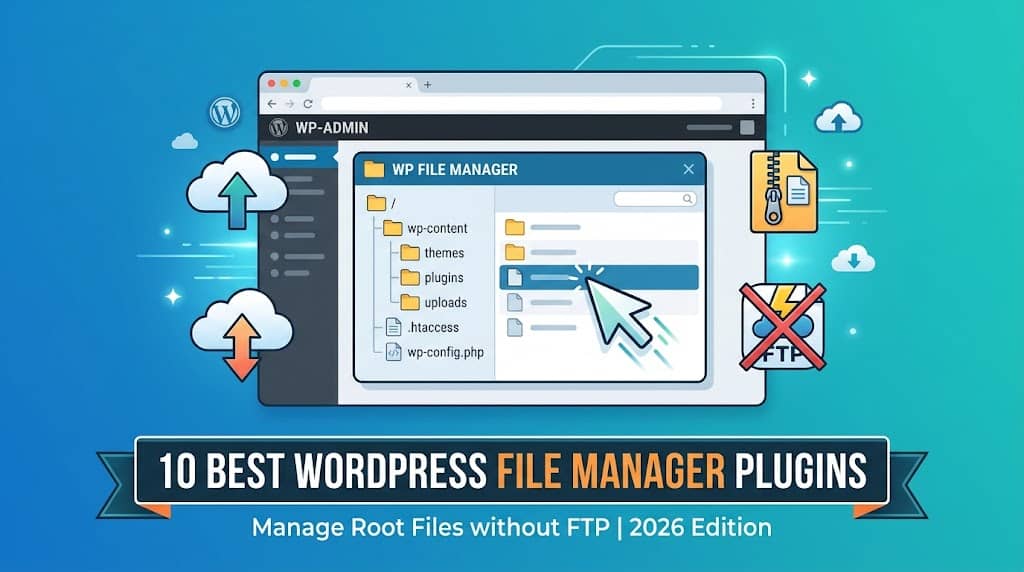
For WordPress site owners who need to manage server files — editing configuration files, uploading themes or plugins manually, deleting leftover plugin directories, managing uploads folders, or editing PHP and CSS files — the traditional workflow requires either cPanel file manager access (not always available on managed WordPress hosts) or an FTP client with credentials. A wordpress file manager plugin eliminates this dependency by providing a graphical file management interface directly in the WordPress admin dashboard, accessible from any browser without additional software.
This guide reviews the 10 best file manager wordpress plugin options in 2026 — from the most widely installed free file manager plugins to advanced code editors and developer tools for managing file manager in wordpress workflows without FTP or cPanel.
Why Use a WordPress File Manager Plugin Instead of FTP
- Immediate access: No FTP client software to install or credentials to locate — files are accessible from the WordPress admin
- Managed host compatibility: Many managed WordPress hosts (Kinsta, WP Engine, Flywheel) don’t provide standard cPanel FTP access — a file manager plugin fills the gap
- Quick edits: Editing a single line in
wp-config.phpor.htaccesswithout opening an FTP session - File upload without FTP: Uploading a theme ZIP or plugin folder directly to the correct directory
- Client handover: Giving clients limited file access without sharing FTP credentials or hosting panel access
⚠ Security Note: File manager plugins that are not restricted to administrator-only access represent a significant security risk if exploited. Always restrict file manager access to administrator role only, use a plugin with access logging, and consider disabling the plugin when not actively needed. Keep all file manager plugins updated promptly as vulnerabilities are a known attack vector.
📊 Quick Comparison Table
| Plugin | Free | Code Editor | Archive (ZIP) | Access Roles | FTP Connect | Best For |
|---|---|---|---|---|---|---|
| 🏆 File Manager (WP) | ✔ | ✔ | ✔ | ✔ | ~ | Most popular free file manager |
| Advanced File Manager | ✔ | ✔ | ✔ | ✔ | ✔ | Per-role file access control |
| WP File Manager Pro | ✗ | ✔ | ✔ | ✔ | ✔ | Premium with FTP + cloud |
| WordPress Theme Editor+ | ✔ | ✔ | ✗ | ~ | ✗ | Code editing (PHP/CSS/JS) |
| Filester | ✔ | ✔ | ✔ | ✔ | ✔ | Frontend file manager |
| wpFTP | ✔ | ✗ | ✗ | ~ | ✔ | In-admin FTP client |
| File Manager Folders | ✔ | ✗ | ✗ | ✗ | ✗ | Media library folders |
| Real Media Library | ✔ | ✗ | ✗ | ✗ | ✗ | Media library organisation |
| WP-CLI | ✔ | ✔ | ✔ | ✔ | ✗ | Developers (command line) |
| Server IP & Memory Usage | ✔ | ✗ | ✗ | ✗ | ✗ | Server info + php.ini view |
✔ = Yes ✗ = No ~ = Partial
10 Best WordPress File Manager Plugins Reviewed
1
File Manager — Best Free WordPress File Manager Plugin
The File Manager plugin by mndpsingh287 is the most widely installed wordpress file manager plugin with over 500,000 active installations, providing a full graphical file manager interface in the WordPress admin powered by the elFinder open-source file manager library. The interface displays the full server directory tree (from the WordPress root or a configured starting directory), with a tree view panel on the left and file/folder contents on the right — familiar to anyone who has used a desktop file manager. Files can be created, uploaded, downloaded, renamed, moved, copied, and deleted. Folders can be created and compressed to ZIP.
The built-in code editor (CodeMirror) provides syntax-highlighted editing of PHP, CSS, JavaScript, HTML, and configuration files directly in the browser. The plugin can be configured to restrict access to the administrator role only and to set the root directory to a specific folder rather than exposing the full server filesystem. The Pro version adds FTP server connection, Amazon S3 and Dropbox integration, per-role access control to specific directories, and file operation logging. For WordPress sites wanting a complete free file manager plugin wordpress with code editing, this is the most used and trusted option.
✓ PROS
- Most trusted free file manager — 500k+ installs
- Full server directory access
- Built-in syntax-highlighted code editor
- ZIP create/extract
✗ CONS
- Has had past security vulnerabilities — keep updated
- Per-role access and FTP require Pro
Best for: WordPress sites wanting the most complete free file manager with code editing, ZIP support, and full server access | Pricing: Free + Pro from $20
2
Advanced File Manager — Best for Per-Role File Access Control
Advanced File Manager extends the elFinder-based file manager with granular access control — allowing different user roles to access different directories with different permission levels (read-only, upload-only, full access). This makes it the most appropriate plugin file manager wordpress for multi-user WordPress sites where different team members need different levels of file access: a content editor who can upload to the uploads folder but cannot access theme or plugin files; a developer with full root access; a client who can view a specific project folder. The role-based access system is configurable per-role and per-directory in the admin settings.
The plugin also supports FTP connections, allowing the admin to connect to an external FTP server and manage those files through the same elFinder interface. For agencies managing files across client sites or developers who need fine-grained control over who can access which server directories, Advanced File Manager provides the access control system that the basic File Manager plugin lacks in its free version.
✓ PROS
- Per-role directory access control
- FTP connection support
- Different permission levels per role
✗ CONS
- Complex configuration for role access
- Some advanced features require Pro
Best for: Multi-user sites where different user roles need different file access levels to different directories | Pricing: Free + Pro from $29
3
Filester — Best Frontend File Manager for Registered Users
Filester creates a frontend file management interface for registered WordPress users — embedding the elFinder file manager on any WordPress page or post via shortcode so that logged-in users can manage files in their designated directory from the frontend without accessing the WordPress admin. Each user can be assigned a private directory that only they can access, making Filester the most appropriate plugin for user-facing file management scenarios: a photographer client who needs to upload and organise delivered photo sets, a student who uploads assignments, or a client accessing a shared project folder.
✓ PROS
- Frontend file manager for non-admin users
- Per-user private directories
- Shortcode embed on any page
✗ CONS
- Requires user registration/login
- Advanced role permissions require Pro
Best for: Sites needing a frontend file manager interface for registered users with per-user private directories | Pricing: Free + Pro from $49
4
WP Code (formerly Insert Headers and Footers) — Best for Code Snippet Management
WP Code provides a dedicated admin interface for managing and inserting PHP, HTML, CSS, and JavaScript code snippets across the WordPress site without editing theme files directly — making it the safest way to add tracking codes, custom functions, style overrides, and analytics scripts. Unlike file manager plugins that directly edit PHP files (risking a white screen of death from a syntax error), WP Code includes syntax validation and an auto-disable feature that deactivates a snippet if it causes a fatal error, preventing site outages. Snippets are organised, toggled on/off, and managed centrally rather than scattered across template files.
✓ PROS
- Auto-disables broken snippets — prevents site outages
- Safer than direct file editing for code changes
- Pre-built snippet library
✗ CONS
- Code snippets only — not a file browser
- Not a replacement for a full file manager
Best for: Sites that need to add custom code without editing theme files directly, with safety auto-disable | Pricing: Free + Pro from $49/year
5
Real Media Library — Best for WordPress Media Library Organisation
Real Media Library solves one of WordPress’s most persistent limitations: the inability to organise media library files into folders. After installation, the media library displays a folder tree that allows images, videos, PDFs, and all media files to be organised into named folders and subfolders — drag-and-drop between folders, searchable, and compatible with WooCommerce product images. For sites with large media libraries (WooCommerce catalogues, photography portfolios, media archives), Real Media Library’s folder organisation makes finding and managing media files dramatically more efficient.
✓ PROS
- Adds folder organisation to WordPress media library
- WooCommerce product image folder support
- Drag-and-drop between folders
✗ CONS
- Media library only — not a full server file manager
- Not free — premium plugin
Best for: Sites with large media libraries needing folder-based media organisation inside WordPress | Pricing: From $39/year
6
Enhanced Media Library — Best Free Media Library Filter & Organisation
Enhanced Media Library adds category and taxonomy filtering to the WordPress media library — allowing media items to be tagged with custom taxonomies (document type, project, client, year) and filtered by these tags in the media library view. Unlike Real Media Library’s folder-based approach, Enhanced Media Library uses the WordPress taxonomy system, making media organisation consistent with how other content types are organised. The free version covers the core taxonomy addition; the Pro version adds a visual media manager with advanced search.
✓ PROS
- Free taxonomy-based media organisation
- Works with standard WordPress taxonomies
- Lightweight approach
✗ CONS
- Taxonomy approach less intuitive than folders for many users
- Not a server-level file manager
Best for: Sites wanting free taxonomy-based media library filtering without a paid folder plugin | Pricing: Free + Pro from $25
7
WP File Manager Pro — Best Premium File Manager with Cloud Integration
WP File Manager Pro (CodeCanyon) is the premium alternative to the free File Manager plugin — providing cloud storage integration (Amazon S3, Google Drive, Dropbox, OneDrive, and FTP servers) in addition to local server file management, allowing the admin to browse, upload, and manage files across multiple storage backends from one interface. The access log records all file operations with timestamps and user details. For WordPress sites that need to manage files across local server storage and cloud storage in one interface, WP File Manager Pro provides the most complete cross-storage file management system.
✓ PROS
- Cloud storage integration (S3, Drive, Dropbox)
- File operation access logging
- Multiple storage backends from one interface
✗ CONS
- Premium only (CodeCanyon)
- More than most sites need
Best for: Sites needing unified file management across local server and cloud storage with access logging | Pricing: $27 one-time (CodeCanyon)
8
Duplicator — Best for Backup, Migration & File Export
Duplicator approaches file management from a migration and backup perspective — packaging the entire WordPress site (files + database) into a portable archive that can be deployed to a new host or restored from backup. While not a traditional file browser, Duplicator is often the most practical tool for the most common “file management” tasks on a WordPress site: moving the site to a new host, creating a staging version, or recovering from a botched update. The free version handles unlimited local packages; the Pro version adds cloud backup storage, scheduled backups, and one-click migration.
✓ PROS
- Free site backup and migration
- Complete file + database archive
- Most practical for site-level file operations
✗ CONS
- Not a file browser — package-level only
- Cloud backup scheduling requires Pro
Best for: WordPress migration, cloning, and backup — the most common site-level file management operation | Pricing: Free + Pro from $69/year
9
WP-CLI — Best for Developers Managing Files via Command Line
WP-CLI (WordPress Command Line Interface) is not a plugin but a command-line tool for managing WordPress installations from a server terminal — enabling developers to manage files, install plugins and themes, run database operations, manage users, and perform site maintenance tasks without a browser interface. For developers and sysadmins with SSH access to the server, WP-CLI provides the most powerful and scriptable file and site management interface available, with commands like wp media import for bulk media import, wp theme install for theme installation from ZIP, and wp core download for WordPress installation.
✓ PROS
- Most powerful file management tool for developers
- Scriptable and automatable
- Free and maintained by WordPress.org
✗ CONS
- Requires SSH access and command-line comfort
- Not suitable for non-developers
Best for: Developers with SSH access who need scriptable, automatable WordPress file and site management | Pricing: Free
10
SSH SFTP Updater Support — Best Secure FTP Alternative for Updates
The SSH SFTP Updater Support plugin allows WordPress to use SFTP (SSH File Transfer Protocol) instead of FTP for plugin and theme updates — important for servers where the filesystem is not writable by the web server user and WordPress prompts for FTP credentials on every update. By enabling SFTP authentication with SSH keys, the plugin allows seamless automated updates without FTP credential prompts. For developers managing WordPress on servers with strict filesystem permissions, this plugin solves the update workflow without exposing FTP credentials.
✓ PROS
- Enables SFTP/SSH key auth for WP updates
- Eliminates FTP credential prompts on updates
- Free and lightweight
✗ CONS
- Specific use case — update workflow only
- Requires SSH key configuration on server
Best for: Developers on locked-down servers needing SFTP instead of FTP for WordPress update operations | Pricing: Free
How to Choose the Right File Manager Plugin
- General server file management: File Manager (free, 500k+ installs) for administrator-only file access with code editor.
- Multi-user access control: Advanced File Manager for per-role directory permissions.
- Frontend user file management: Filester for registered user file portals.
- Code snippets safely: WP Code for custom code without direct file editing.
- Media library organisation: Real Media Library (folders) or Enhanced Media Library (taxonomies).
- Backup and migration: Duplicator for complete file + database portability.
- Developer command-line: WP-CLI for scriptable site and file management via SSH.
Frequently Asked Questions
Are WordPress file manager plugins safe?
File manager plugins are powerful tools that require careful configuration. Key security practices: restrict access to administrator role only in the plugin settings; set the plugin’s root directory to the specific folder that needs access rather than the full server filesystem; keep the plugin updated immediately when security patches are released; consider deactivating the plugin when not actively needed rather than leaving it permanently enabled. The File Manager plugin has had past vulnerabilities that were exploited — running an outdated version is the primary risk.
Can I edit PHP files safely from the WordPress admin?
Editing PHP files directly is risky because a syntax error in functions.php or a plugin file will cause a white screen of death, locking you out of the WordPress admin. WordPress’s built-in Theme Editor includes a basic PHP validation warning. The File Manager plugin’s code editor has no such protection. For adding custom PHP code safely, WP Code is the recommended approach — it auto-disables broken snippets and prevents site-locking errors. For direct file editing when necessary, always take a backup first.
Final Recommendation
For most WordPress sites, the free File Manager plugin (mndpsingh287) covers all standard file management requirements — browsing, editing, uploading, and compressing files without FTP access. Restrict it to administrator only and keep it updated. For custom code additions, use WP Code instead of direct file editing for safety. For media library organisation, Real Media Library adds the folder system WordPress should have natively. For migration and backup, Duplicator is the most reliable free tool.
Manage Your WordPress Files Without FTP
File Manager is free, trusted by 500,000+ sites, and provides full file management from your WordPress admin.
