

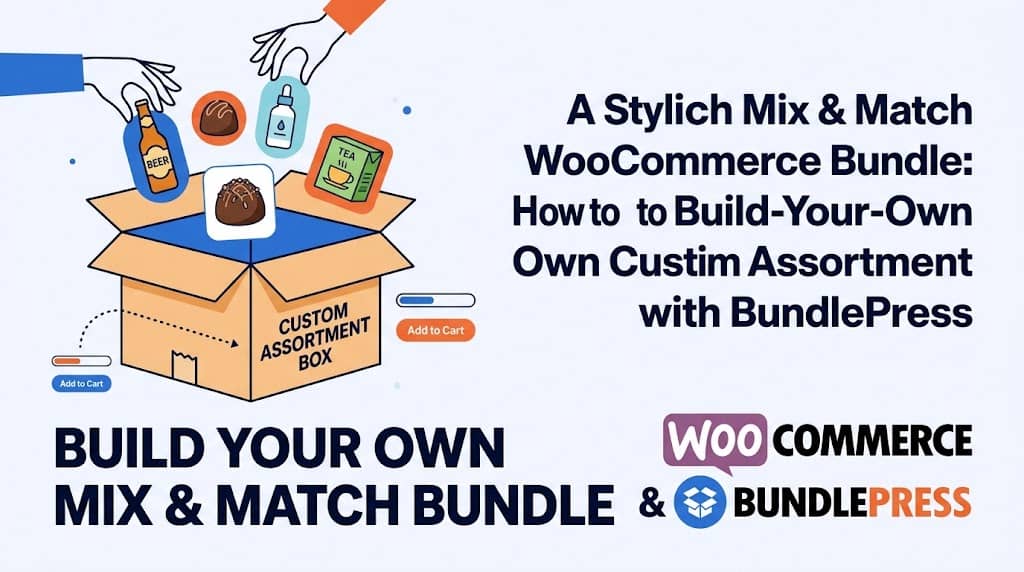
The Mix & Match bundle is arguably the most customer-centric bundle type available — instead of presenting a pre-curated set, it gives customers the control to build their own assortment from a selection of eligible products. “Pick any 6 beers from our craft beer range.” “Build your own skincare routine: choose 4 products from this collection.” “Create your own 12-pack sampler — any flavors you want.”
This type of bundle drives purchase satisfaction, reduces return rates (customers chose exactly what they wanted), and creates higher average order values because customers who are engaged in active selection spend more time on-site and add more items. BundlePress’s Mix & Match bundle type is the easiest way to create custom assortment boxes in WooCommerce — this guide covers every step and configuration option.
What Is a Mix & Match Bundle in WooCommerce?
A Mix & Match bundle (also called a custom box, build-your-own bundle, or assortment pack) is a product bundle where:
- The store defines the eligible products — which products can go in the box (from a specific category or a curated list)
- The store defines the box rules — total quantity (e.g., exactly 6), minimum/maximum quantities per selection
- The customer chooses which products — filling the box with any combination they prefer from the eligible selection
- The bundle price applies when the customer completes their selection and adds to cart
The customer experience is interactive and satisfying: they browse the eligible products, add different items to their box, see the box fill up as they select, and add to cart when they’ve reached the required quantity — or any quantity within the min/max range.
Mix & Match vs Fixed Bundle: Which Should You Use?
Fixed Bundle — Use When:
- You have a specific expert-curated set
- The combination of products creates unique value (gift kits, starter packs)
- You want to control exactly what goes in the bundle
- Products are highly complementary and there’s a clear “right” combination
Mix & Match — Use When:
- Customers have personal preferences (flavors, scents, designs)
- You offer a variety within a category (beers, teas, chocolates)
- You want to boost order quantity through customer choice
- Products are largely interchangeable within a range
How to Create a Mix & Match Bundle in WooCommerce
Step 1: Select Mix & Match Bundle Type
Go to BundlePress → Create New Bundle. Select Mix & Match (Custom Box) as the bundle type. Name the bundle something that communicates the selection opportunity (e.g., “Build Your Own 6-Pack” or “Create Your Skincare Routine”).
Step 2: Add Eligible Products
Use the Product Picker to add all products eligible for selection in this Mix & Match box. You can:
- Add individual products from anywhere in your catalog using search
- Filter by category to add all products in a specific category (great for “any beer from our craft range” configurations)
- Filter by tag to add products tagged with specific attributes
Free version limit: Up to 3 products. BundlePress Pro removes this limit, allowing an unlimited selection pool for your Mix & Match box.
Step 3: Configure Box Size Rules
Set the quantity rules for the bundle:
- Box Total Quantity (fixed): Set an exact quantity the customer must fill (e.g., exactly 6, exactly 12)
- Minimum Quantity: The minimum total products the customer must select
- Maximum Quantity: The maximum total products allowed in the box
A “Build Your Own 6-Pack” would have a fixed total of 6. A “Starter Bundle: Choose 2-5 products” would have a minimum of 2 and maximum of 5. The bundle add-to-cart button activates when the customer has met the minimum quantity requirement.
Step 4: Set Per-Product Quantity Rules
For each eligible product, you can set per-product quantity limits:
- Max per product: Limit how many of any single product the customer can include (e.g., max 3 of the same flavor in a 6-pack)
- Min per product: Require at least X of a specific product (e.g., at least 1 of the core product in the bundle)
Step 5: Configure Pricing & Discount
Set how the Mix & Match box is priced. Options include:
- Sum of selected products: Price is the total of individual product prices based on customer selection
- Fixed box price: A fixed total regardless of which products are selected
- Bundle discount: Percentage off the sum of selected products
Step 6: Assign to Product Page & Preview
Assign the Mix & Match bundle to a product page. Use the live preview in the bundle builder to confirm the widget shows correctly. Save and publish the bundle.
Box Size Rules: Min & Max Quantities
Quantity rules give the Mix & Match bundle structure and prevent incomplete selections from being added to the cart. Common configurations:
| Bundle Name | Min | Max | Example |
|---|---|---|---|
| Fixed 6-Pack | 6 | 6 | “Build Your Own 6-Pack Beer” |
| Flexible Starter | 2 | 5 | “Create Your Skincare Routine: Choose 2–5” |
| Fixed Dozen | 12 | 12 | “Design Your Own Chocolate Box (12pc)” |
| Open Choice | 1 | — | “Mix & Match Sample Pack — Choose as Many as You Like” |
Category-Based Mix & Match
One of the most powerful applications of Mix & Match is category-scoped selection — “Choose any 6 products from our [Category Name] collection.” BundlePress’s Product Picker allows filtering by WooCommerce category when adding eligible products, making it easy to build category-scoped bundles. When new products are added to that category in WooCommerce, they can be added to the Mix & Match eligible product list without rebuilding the bundle from scratch.
Pricing a Mix & Match Bundle
Mix & Match pricing has two common approaches, each with a different customer psychology:
- Dynamic pricing (sum of selected): The bundle total changes based on which products the customer selects. Products with different prices contribute differently to the total. This is fair and transparent but more complex.
- Fixed box price + bundle discount: All selections from the eligible pool count toward the same fixed price or discount. “Any 6 products for $29.99” regardless of which 6 are chosen. This is simpler for customers and creates a stronger “deal” perception when higher-priced items are selected.
Customer Experience & Frontend Display
The Mix & Match widget on the frontend provides an interactive selection experience:
- Product grid or list showing all eligible items with images, names, and prices
- Quantity selectors (+ / -) for each eligible product
- A progress indicator showing how many items have been selected vs the target (e.g., “4/6 selected”)
- Running total price updating as selections change
- “Add to Cart” button that activates when the minimum quantity requirement is met
The widget is fully mobile-responsive — on small screens, the product grid adjusts to an appropriate layout. The interactive selection experience works equally well on touch devices as on desktop.
Mix & Match Use Cases by Product Type
🍻 Craft Beer
“Build Your Own 6-Pack” — customers choose from 20+ craft beers to create their perfect mixed case.
🍤 Chocolates
“Design Your Box: Choose 12” — customers pick their favorite truffle flavors for a personalized gift box.
🌿 Teas & Herbs
“Tea Sampler: Pick Any 5” — customers select their preferred tea varieties for a custom sampler pack.
💉 Beauty
“Build Your Routine: Choose 3–5 Steps” — customers select their skincare steps for a personalized routine kit.
Frequently Asked Questions
Can customers add different quantities of the same product in a Mix & Match box?
Yes. Each eligible product in a Mix & Match bundle has its own quantity selector. A customer building a 6-pack could select 3 of one beer, 2 of another, and 1 of a third — as long as the total adds up to 6 (or within the configured min/max range). Per-product maximum limits can restrict how many of any single product a customer can include.
Is Mix & Match available in the free version of BundlePress?
Yes. Mix & Match is available in the free version of BundlePress with up to 3 eligible products and simple products only. BundlePress Pro removes the product limit (unlimited eligible products) and adds variable product support — allowing customers to select specific variations (color, size) of variable products within their Mix & Match box.
Let Customers Build Their Own Bundle in WooCommerce
BundlePress Mix & Match — the product bundle for WooCommerce that puts customers in control of their own perfect assortment box.
