

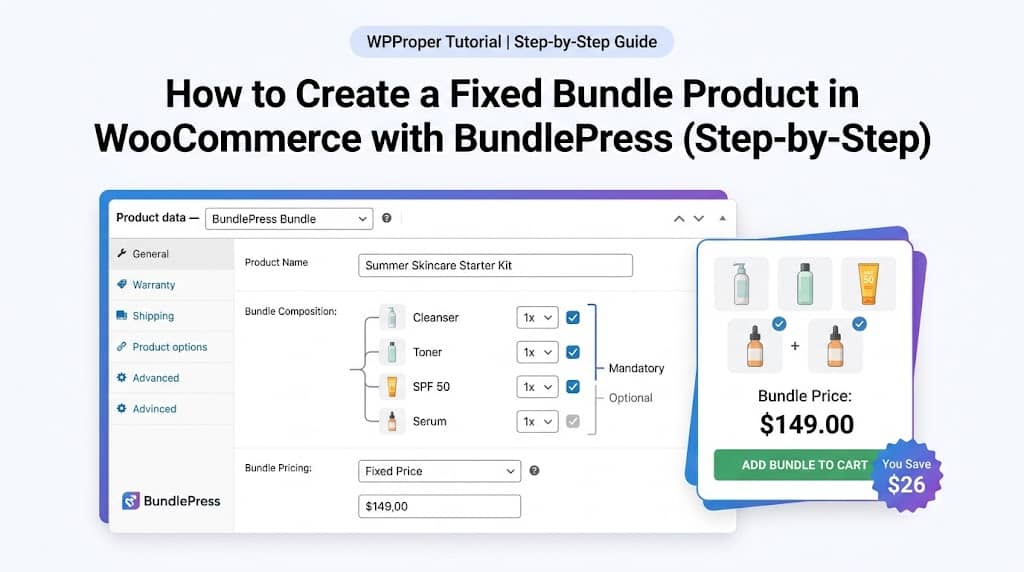
A fixed bundle is the most fundamental type of product bundle in WooCommerce — a pre-curated set of specific products sold together at a defined price. Unlike mix-and-match or volume bundles where customers make choices, a fixed bundle presents a ready-made assortment: these products, this price, add to cart. The simplicity is intentional — it removes purchase friction and makes buying a curated set effortless for the customer while delivering reliable Average Order Value uplift for the store.
This tutorial covers everything you need to know about how to create a fixed bundle in WooCommerce using BundlePress — from the initial setup steps through pricing configuration, mandatory/optional product settings, quantity rules, and display layout options.
What Is a Fixed Bundle?
A fixed bundle (also called a product set, kit, or grouped product) is a collection of specific products that are sold together as a package. In BundlePress, a Fixed Bundle has these defining characteristics:
- Pre-selected products: The store owner defines exactly which products are in the bundle — customers don’t choose
- Fixed composition: The same products are in the bundle every time it’s purchased
- Bundle-level pricing: The bundle has its own price (either a fixed total or a discount from the sum of individual prices)
- Single add-to-cart: All products in the bundle are added to the cart simultaneously with one click
🎁 Gift Box
“Holiday Baking Kit” — Mixing bowl + measuring cups + spatula + cookbook
🚀 Starter Kit
“Photography Starter Pack” — Camera + memory card + camera bag + lens cloth
👫 Furniture Set
“Home Office Bundle” — Desk + chair + desk lamp + cable organizer
When to Use Fixed Bundles in Your WooCommerce Store
Fixed bundles work best in these scenarios:
- Gift sets & seasonal promotions: Pre-packaged gift boxes for Christmas, Valentine’s Day, Mother’s Day — curated for the recipient without any customer decision-making
- Starter kits & beginner sets: Onboarding new customers to a product category with everything they need to start — reducing post-purchase confusion and returns
- Complementary product pairings: A camera with its most popular accessories — items that work together and are commonly needed together
- Inventory clearance: Bundle slow-moving stock with bestsellers to move old inventory while rewarding customers with a deal
- Premium positioning: High-end curated sets positioned as a premium purchase vs. buying items individually
How to Create a Fixed Bundle in WooCommerce with BundlePress
Step 1: Open the Bundle Builder
Navigate to BundlePress → Create New Bundle in your WordPress admin sidebar. The bundle type selection screen appears. Select Fixed Bundle and click “Create.”
Step 2: Name Your Bundle
Enter a descriptive bundle name (e.g., “Summer Skincare Starter Kit”). This name may be displayed as the bundle header in the frontend widget depending on your customization settings.
Step 3: Add Products via the Product Picker
Click “Add Products” to open the Product Picker panel. You can:
- Search by name: Type the product name to find specific items
- Filter by Category: Browse all products in a WooCommerce category
- Filter by Tag: Find products with specific tags
- Select the products you want to include and confirm the selection
Free version limit: Up to 3 products per bundle (simple products only). BundlePress Pro removes this limit and adds variable product support.
Step 4: Configure Each Product’s Bundle Settings
For each product added to the bundle, configure:
- Quantity: How many units of this product are included in the bundle (e.g., 1 camera, 2 memory cards, 1 bag)
- Mandatory / Optional: Whether this product is always included or can be deselected by the customer
Step 5: Set Bundle Pricing
BundlePress Fixed Bundles support two pricing models:
- Fixed Price: A single total price for the entire bundle regardless of individual product prices
- Percentage Discount: A percentage off the sum of the individual product prices (e.g., “10% off when purchased as a bundle”)
Step 6: Assign to a WooCommerce Product Page
Select the WooCommerce product page where this bundle will be displayed. The fixed bundle widget appears on that product’s page automatically — below the product description, next to the add-to-cart button, or in another configured position.
Step 7: Preview & Save
Use the live preview within the bundle builder to see how the bundle will look on the frontend before publishing. When satisfied, save the bundle. It becomes active on the product page immediately.
Fixed Bundle Pricing Options
| Pricing Type | How It Works | Best For |
|---|---|---|
| Fixed Total Price | You set a single price for the entire bundle. Shown as one line item in cart. | Gift boxes, clearly packaged sets, premium positioning |
| Percentage Bundle Discount | Bundle price = sum of individual prices minus the discount %. “You save X” shown to customer. | When individual product prices matter and discount communication is key |
| Regular Price (no discount) | Bundle adds all items to cart at their normal individual prices. Useful for convenience grouping without a price incentive. | Complementary product sets where the value is convenience, not discount |
Mandatory vs Optional Products in Fixed Bundles
BundlePress allows designating each product in a fixed bundle as either Mandatory or Optional:
- Mandatory products: Always included in the bundle. The customer cannot remove them. These form the core of the bundle — the primary products being sold together. A checkbox is shown pre-checked and grayed out, communicating clearly that this item is always included.
- Optional products: Included by default but the customer can deselect them. These are add-on or enhancement items — a screen protector in a phone bundle, a USB cable in a laptop bundle. The price adjusts dynamically when the customer deselects an optional item.
The mandatory/optional configuration is powerful for upselling: you can use a fixed bundle to present a core product with optional accessories, letting customers build their own kit while still anchoring the purchase on the primary product. The bundle price updates in real-time as customers check or uncheck optional items.
Quantity Rules & Limits
Each product in a fixed bundle has its own quantity setting. This allows bundling different quantities of different products — for example:
- “Photography Starter Kit”: 1× Camera Body + 2× Memory Cards + 1× Camera Bag + 3× Lens Cleaning Cloths
- “Skincare Routine Set”: 1× Cleanser + 1× Toner + 2× Moisturizer (morning & night) + 1× SPF
The total bundle price is calculated based on the quantities of each included item. For percentage discount bundles, the discount is applied to the total of all included items at their respective quantities.
Frontend Display & Layout Options
Fixed bundle widgets display on the assigned product page in a responsive layout. The widget shows:
- Bundle name and description
- Each product with its image, name, and quantity
- Mandatory/optional checkboxes where applicable
- Individual product prices and the bundle total
- “You Save” callout if a discount is applied
- “Add Bundle to Cart” button
Layout options: Free version uses List layout (products stacked vertically). BundlePress Pro unlocks Grid layout with 2, 3, or 4 columns per row — ideal for bundles with more products where a visual grid presentation improves the browsing experience. Both layouts are fully mobile-responsive.
Variable Products in Fixed Bundles (Pro)
BundlePress Pro extends fixed bundles to support variable products — products with size, color, model, or other variation attributes. When a variable product is included in a fixed bundle:
- Variation selector dropdowns appear within the bundle widget for each variable product
- Attribute options are sorted in the order defined in WooCommerce Product Attributes — the same order shown on the individual product page
- The bundle total price updates dynamically when the customer selects different variations
- Only in-stock variations are available for selection — out-of-stock variations are grayed out
Frequently Asked Questions
Can I add a fixed bundle to cart without navigating to a product page?
Fixed bundle widgets in BundlePress are displayed on product pages. The bundle is assigned to a specific product and displays within that product’s page. The “Add Bundle to Cart” button adds all bundle products simultaneously. Currently, bundles display in product page context — BundlePress Pro’s Frequently Bought Together bundles can also appear on other products’ pages as cross-sell suggestions.
How does a fixed bundle appear in the WooCommerce cart?
Each product in the fixed bundle appears as a separate line item in the WooCommerce cart, correctly attributed to the bundle. The bundle price and discount are applied correctly to the cart total. Customers can see exactly what they’re purchasing in the cart. Mandatory items cannot be removed from the cart individually while maintaining the bundle structure.
Can a fixed bundle contain products from different categories?
Yes. Fixed bundles in BundlePress can include any products from your WooCommerce catalogue regardless of category. A bundle could include a product from your “Electronics” category alongside one from “Accessories” and another from “Software.” The product picker allows searching by name, category, or tag to find products from any part of the catalogue.
Create Your First Fixed Bundle in WooCommerce
BundlePress makes it easy to create high-converting fixed bundle products in WooCommerce — gift boxes, starter kits, and curated sets with no coding required.
