

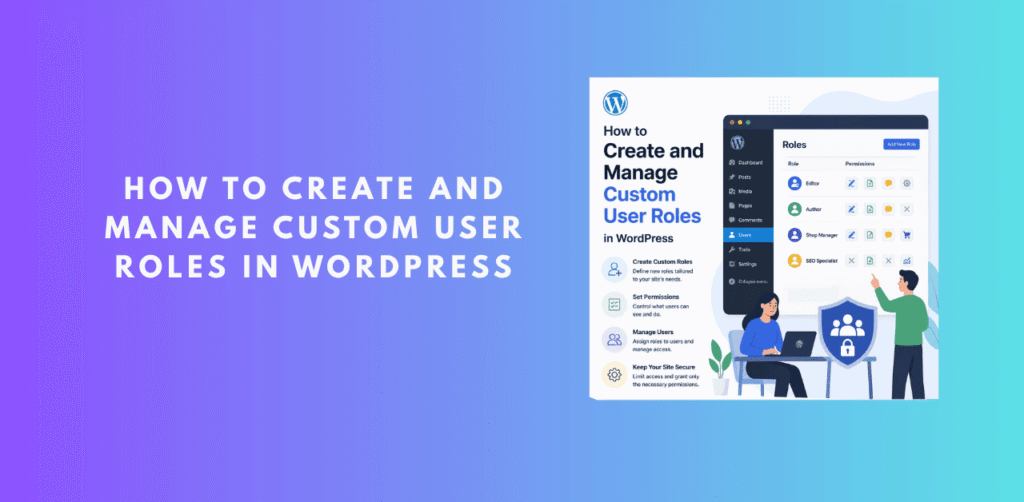
Introduction: Why Create Custom User Roles in WordPress?
When you first launch a WordPress website, the five default user roles — Administrator, Editor, Author, Contributor, and Subscriber — cover basic administrative needs. However, as your website grows into a business, multi-author magazine, e-commerce store, or digital agency, these default roles quickly reveal their limits.
For instance, what if you hire an SEO specialist who needs access to Yoast or Rank Math settings, but shouldn’t edit your pages or install plugins? What if you bring on a guest contributor who needs to upload images directly to their post drafts, but shouldn’t publish live posts? Or what if you hire a freelance developer for 48 hours to fix a layout bug, but don’t want to leave permanent Administrator access open on your site?
Learning how to create custom user role in wordpress solves all of these problems. By defining custom roles with targeted permissions, you adhere to the security Principle of Least Privilege: giving users access to the exact capabilities they need to fulfill their job duties — and nothing more.
In this comprehensive tutorial, we will explore two complete methods for custom role creation: Method 1 (No-Code Plugin via DominoRole) for fast, visual, and safe management, and Method 2 (Programmatic PHP Code) for developers who prefer custom snippets.
Method 1 (Recommended): Create Custom Roles with DominoRole
The safest and most efficient way to perform a wordpress add custom user role task without touching code is by using DominoRole – User Role Permission Manager (v2.0.1 by DominoPress). Built with a modern React and Chakra UI frontend, DominoRole replaces legacy text grids with a sleek, interactive command center.
Step-by-Step: Creating a Custom Role with DominoRole
Step 1: Install and Activate DominoRole
Navigate to Plugins > Add New in your WordPress dashboard. Upload the DominoRole plugin zip file or search for “DominoRole”, then click Activate.
Step 2: Open the Role Manager & Click “Create Role”
Click the new DominoRole menu item in your WordPress admin sidebar. In the Role Manager dashboard, click the prominent blue Create Role button in the upper corner.
Step 3: Define Role ID and Display Name
Enter a unique, lowercase Role ID (e.g., community_manager) and a human-readable Display Name (e.g., “Community Manager”). You can also choose an existing role to copy baseline permissions from.
Step 4: Customize Capabilities via the Permission Manager
To wordpress edit user role permissions, click the Permissions button next to your new role. DominoRole opens an intuitive multi-tab modal:
- Most Used Permissions: Common capabilities with helpful explanatory tooltips.
- Admin Menu Permissions: Capabilities tied to specific WordPress sidebar menu sections.
- All Permissions: Full searchable capability list with bulk select checkboxes.
- Active Permissions: Quick overview of active capabilities with instant revoke toggles.
Step 5: Preview Unlocked Sidebar Menus (Menu Access Viewer)
One of DominoRole’s best features is the Menu Access Viewer. Click the eye icon next to any capability to see a live modal showing the exact admin sidebar menus and submenus that capability unlocks before saving!
🔍 Codebase Spotlight: How DominoRole Handles Temporary Access & Smart Detection
Our analysis of the DominoRole source code revealed two standout technical innovations:
class-dominorole-temporary-permissions-api.php, DominoRole attaches to the user_has_cap filter. When a temporary capability is assigned to a user with an expiry timestamp, DominoRole dynamically injects the capability during active sessions. The moment the expiration datetime passes, access automatically revokes with zero residual database overhead!class-dominorole-smart-detector-api.php, this system scans for new capabilities added by newly installed third-party plugins (WooCommerce, Elementor, Yoast, etc.), attributes them to the source plugin, and alerts admins so they can assign them to custom roles immediately.Method 2: How to Create Custom User Roles via PHP Code
For WordPress developers who prefer code-based setups or theme developers building custom site packages, WordPress core provides native functions to execute a wordpress add user role operation programmatically.
1. Adding a Custom Role using add_role()
The core function to create a new role is add_role($role_slug, $display_name, $capabilities). Because role definitions are stored in the database, you should run this function on theme or plugin activation, rather than on every page load.
// Execute on plugin or theme activation hook
function my_custom_register_user_role() {
    add_role(
        'content_moderator',                  // System Role ID / Slug
        __('Content Moderator', 'textdomain'), // Display Name
        array(
            'read'             => true,      // Access admin dashboard
            'edit_posts'       => true,      // Edit own posts
            'edit_others_posts' => true,      // Moderate posts by others
            'publish_posts'    => false,     // Cannot publish live
            'moderate_comments' => true,     // Manage & approve comments
            'upload_files'     => true,      // Upload images to media library
        )
    );
}
add_action('init', 'my_custom_register_user_role');
2. How to Get User Role in WordPress
When developing custom templates, you often need to get user role wordpress data for a specific user ID:
// Get user role by User ID
$user = get_userdata($user_id);
if ($user && !empty($user->roles)) {
    $user_roles = $user->roles; // Returns array of role slugs
    $primary_role = $user_roles[0];
    echo 'Primary User Role: ' . $primary_role;
}
3. How to Get Current User Role in WordPress
To retrieve the active user’s roles on the current request, use wp_get_current_user() to get current user role wordpress information:
// Get current logged-in user's roles
$current_user = wp_get_current_user();
if ($current_user->exists()) {
    $current_roles = (array) $current_user->roles;
    print_r($current_roles);
}
4. How to Check User Role in WordPress
Security best practice dictates that you should check user role wordpress access by verifying specific capabilities using current_user_can() rather than hardcoding role names:
// Recommended: Check capability rather than role string
if (current_user_can('moderate_comments')) {
    // Display comment moderation toolbar
}

// Alternative: Check specific role slug if required
$user = wp_get_current_user();
if (in_array('content_moderator', (array) $user->roles)) {
    // User has content_moderator role
}
5. How to Change User Role Programmatically
To wordpress change user role assignments on an existing account using code:
// Replaces current role with new role
$user = new WP_User($user_id);
$user->set_role('editor');

// Or add a secondary role without removing existing ones
$user->add_role('shop_manager');
6. How to Hide Admin Bar for Specific User Roles
A common site customization is to implement a wordpress hide admin bar for user role snippet for subscriber, customer, or contributor roles:
// Hide admin bar for non-administrative roles
function my_hide_admin_bar_for_roles() {
    if (!current_user_can('administrator') && !is_admin()) {
        show_admin_bar(false);
    }
}
add_action('after_setup_theme', 'my_hide_admin_bar_for_roles');
7. How to Remove Custom User Roles cleanly
If a custom role is no longer required, you can remove user role wordpress definitions using remove_role():
// Remove a custom role from the database
function my_remove_custom_role() {
    remove_role('content_moderator');
}
add_action('admin_init', 'my_remove_custom_role');
Comparison: DominoRole (No-Code) vs. Programmatic PHP Code
| Feature / Task | DominoRole Plugin | Custom PHP Code |
|---|---|---|
| Ease of Setup | ✓ Visual 1-Click UI | Requires coding knowledge |
| Risk of Site Breakage | ✓ Zero (Core safeguards) | High (PHP syntax error risk) |
| Temporary Expiry Scheduler | ✓ Built-in Datetime Picker | Complex WP Cron code |
| Admin Menu Access Preview | ✓ Interactive Modal | Manual user switching |
| Staging to Production Migration | ✓ 1-Click JSON Export | Manual code deployment |
🛡️ Best Practices for Custom Role Security
Avoid deleting or modifying Administrator or Subscriber roles directly. Create a new custom role or clone an existing role instead.
Review user access periodically. Utilize DominoRole’s Smart Capability Detector to track new permissions registered by newly installed plugins.
For short-term freelancers or guest writers, set temporary roles with automatic expiration timestamps to eliminate orphaned admin access.
❓ Frequently Asked Questions
🏁 Conclusion
Understanding how to create custom user role in wordpress is one of the most effective ways to secure your website, improve administrative productivity, and streamline team collaboration.
Whether you choose custom PHP snippets or leverage the modern visual dashboard of DominoRole, building tailored role hierarchies ensures your website remains secure, organized, and scalable for years to come.
Build custom roles, preview menu access, and schedule temporary permissions effortlessly with DominoRole.

One thought on “How to Create and Manage Custom User Roles in WordPress”
Comments are closed.