

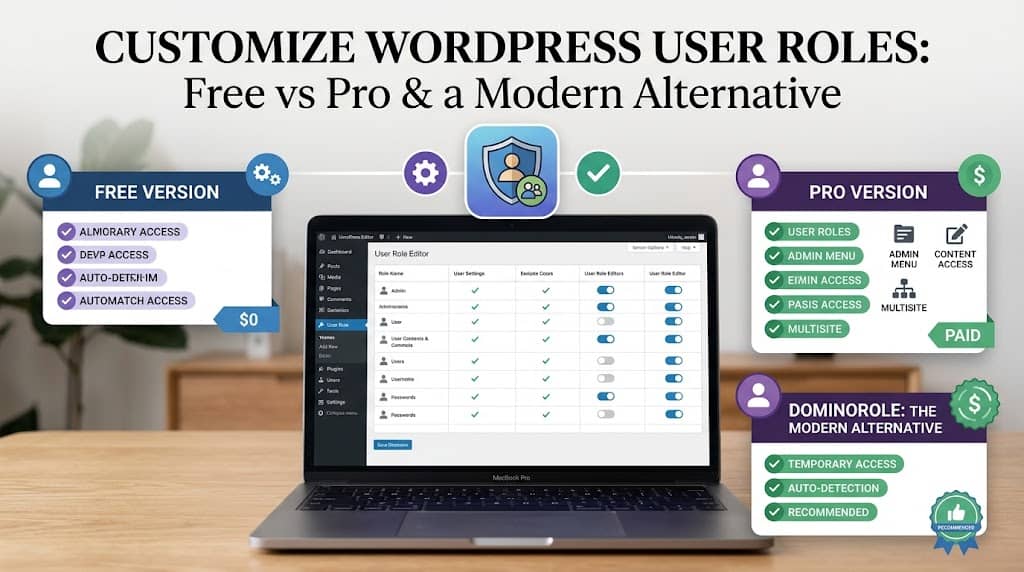
Every WordPress site owner eventually faces the same challenge: you need to give someone — a contractor, a team member, a client — access to your WordPress dashboard, but you don’t want them to have access to everything. The default roles WordPress provides (Administrator, Editor, Author, Contributor, Subscriber) are a reasonable starting point, but they rarely map perfectly to real-world team structures.
This is where the User Role Editor WordPress plugin comes in. For years, it has been the go-to tool for WordPress administrators who need to go beyond the defaults — adding, removing, and customizing capabilities without writing a single line of PHP. In this guide, we’ll walk you through everything you need to know: how to install and use the plugin, how to create and configure custom roles, and an honest side-by-side comparison of the free and Pro versions.
We’ll also look at some of the plugin’s limitations and explore a newer, more modern alternative that solves several of those pain points — particularly if you’re managing complex, multi-user sites or WooCommerce stores.
By the end of this guide, you’ll have a crystal-clear picture of how to take full control of permissions on your WordPress site, regardless of which tool you choose.
What Is the User Role Editor WordPress Plugin?
The User Role Editor WordPress plugin is one of the longest-standing and most widely used role management tools in the WordPress ecosystem. Developed by Vladimir Garagulya (username: shinephp) and hosted on WordPress.org, it has accumulated millions of active installations and remains one of the most searched-for role management solutions in the WordPress space.
At its most fundamental level, the WordPress User Role Editor allows site administrators to:
- View all available WordPress capabilities in a visual, checkbox-based interface
- Grant or revoke individual capabilities from any existing role
- Create entirely new custom roles from scratch
- Delete non-default custom roles
- Assign capabilities directly to individual users (bypassing role limitations)
- Reset roles back to their WordPress defaults if something goes wrong
The plugin works by reading WordPress’s built-in role and capability data from the database (stored in the wp_options table under the wp_user_roles key) and presenting that data in a human-readable, editable format. Without a plugin like this, making these changes would require either code in your theme’s functions.php or direct database manipulation — both of which are error-prone and inaccessible to non-developers.
💡 Quick Stats: The User Role Editor WordPress plugin is available in a free version on WordPress.org and a Pro version with extended functionality available directly from the developer’s site. The free version handles most common use cases; the Pro version is aimed at sites with more complex requirements.
The plugin has existed since the early days of WordPress plugin development, which is both a testament to its usefulness and a source of some of its current challenges. In an ecosystem where expectations around UI, performance, and feature sets have risen dramatically, a plugin that hasn’t been rebuilt from the ground up can start to feel its age — even if it remains technically functional.
Why You Need a Dedicated Role Editor Plugin
Before we get into the how-to, it’s worth understanding why WordPress’s default role system isn’t sufficient for many sites. If you’re running a personal blog and you’re the only user, you genuinely don’t need this plugin. But the moment you add a second user with different needs, the cracks start to show.
The Default Role Problem
WordPress’s five default roles (Administrator, Editor, Author, Contributor, Subscriber) were designed for a specific type of website: the multi-author blog. They map well to editorial hierarchies, but poorly to almost everything else. Consider these common mismatches:
WooCommerce Stores
You need a “Fulfillment Manager” who can process orders but can’t touch products or settings. No default role covers this without oversharing.
Agency Client Sites
Clients need to update their own content but must not be able to install plugins, change themes, or modify settings that would break the site.
LMS Platforms
LearnDash, LifterLMS, and similar plugins add course management capabilities that need to be assigned to “Teacher” or “Instructor” roles that don’t exist by default.
News & Media Sites
Different content departments (Sports, Finance, Lifestyle) may need editors who can manage their section but not others — impossible with a single Editor role.
In each of these cases, the solution is either to over-privilege a user (granting them more access than they need, increasing your security risk) or under-privilege them (limiting their productivity and frustrating your team). A role editor plugin lets you build a third option: a precisely scoped custom role that fits the job perfectly.
The Plugin Capability Problem
Whenever you install a plugin — WooCommerce, Elementor, Yoast SEO, LearnDash, WPForms — it often registers new capabilities. Without a visual management tool, these capabilities are effectively invisible to site administrators. They may remain unassigned (making features inaccessible to anyone but Administrators) or they may be automatically granted to Administrator only, when you’d prefer specific team roles to have access.
The user role editor WordPress plugin surfaces all of these capabilities in one place, making it possible to see what every installed plugin added and assign those capabilities to the appropriate roles.
Step-by-Step Installation & Setup
Getting the WordPress User Role Editor up and running is straightforward. Here’s a complete walkthrough from installation to your first configuration.
Creating Custom Roles & Assigning Permissions
Creating a custom role with the User Role Editor plugin is one of its most valuable features. Here’s a detailed walkthrough of the entire process, including how to think about which capabilities to assign.
Step 1: Add a New Role
On the main Role Editor screen, click the “Add Role” button. A dialog box will appear asking for two things:
- Role Name (ID): This is the machine-readable slug WordPress uses internally. Use lowercase letters and underscores only — for example,
community_managerorshop_accountant. This cannot be changed after creation. - Display Name: The human-readable label shown in the WordPress interface — for example, “Community Manager” or “Shop Accountant.” This can be changed later.
- Make copy of: An optional dropdown that pre-populates your new role with the capabilities of an existing role, making it a clone. This is highly recommended over starting with an empty role.
Once the role is created, it will appear in the role dropdown. Select it to begin assigning capabilities.
Step 2: Understanding the Capabilities Grid
The capabilities grid in the WordPress User Role Editor is a flat list of all registered capabilities on your site. With a fresh WordPress installation, you’ll see approximately 60–80 core capabilities. With WooCommerce installed, that number jumps to 150+. With Elementor, LearnDash, and other plugins, you could easily have 200+ capabilities in this list.
The capabilities are grouped into the following primary categories (based on their function, though the plugin may display them alphabetically or in mixed order depending on settings):
| Capability Group | Key Capabilities | Who Typically Needs It |
|---|---|---|
| Core Access | read, view_admin_dashboard |
All roles |
| Posts Management | edit_posts, publish_posts, edit_others_posts |
Authors, Editors, Writers |
| Media | upload_files, edit_files |
Authors, Content Managers |
| User Management | list_users, edit_users, create_users |
Support Agents, HR Admins |
| Site Administration | manage_options, activate_plugins, switch_themes |
Administrators only |
| WooCommerce | manage_woocommerce, edit_shop_orders, view_woocommerce_reports |
Shop Managers, Accountants |
Step 3: Assigning Capabilities Strategically
Rather than randomly checking boxes, use a structured approach to assigning capabilities to your custom role. The most effective method is to start from a real job description and map it to capabilities:
Example: Creating a “WooCommerce Support Agent” Custom Role
// Capabilities needed for order support, no product or settings access
read                     → true  // Basic site access
view_admin_dashboard    → true  // See WP Admin
read_shop_order         → true  // View orders
edit_shop_orders        → true  // Update order status
list_users              → true  // View customer list
moderate_comments       → true  // Handle support comments
upload_files            → true  // Attach files to tickets
manage_woocommerce      → false // Do NOT grant — too broad
manage_options          → false // Do NOT grant — admin access
Step 4: Assign the Role to Users
Once your custom role is saved, you can assign it to users in two ways. From the Users → All Users screen, select the users you want to change, choose your new role from the “Change role to…” dropdown, and click Change. Alternatively, edit individual users and change their role from the Role dropdown on their profile page.
The WordPress User Role Editor also allows you to set a role as the default registration role for new users — useful if you’re running a membership site where all new registrants should start with a specific custom role instead of the default Subscriber.
Free vs Pro: Full Feature Comparison
One of the most frequently asked questions about the user role editor WordPress plugin is whether the free version is sufficient or whether User Role Editor Pro is worth the investment. The honest answer depends on what your site actually needs.
Let’s break down every significant difference between the two versions so you can make an informed decision.
- ✓View & edit role capabilities
- ✓Create & delete custom roles
- ✓Per-user capability overrides
- ✓Reset roles to defaults
- ✓Assign multiple roles to one user
- ✓Show capabilities in human-readable form
- ✓Role copy / clone
- ✓Everything in Free, plus:
- ✓Admin menu access control per role
- ✓Post/Page content access restriction
- ✓Widgets access control
- ✓Multisite / Network role management
- ✓Import & export roles (JSON)
- ✓Shortcodes for content visibility
- ✓Conditional capabilities (post type level)
- ✓Priority support
Detailed Feature Comparison Table
| Feature | Free | Pro |
|---|---|---|
| Create & delete custom roles | ✓ | ✓ |
| Edit role capabilities | ✓ | ✓ |
| Per-user capability overrides | ✓ | ✓ |
| Multiple roles per user | ✓ | ✓ |
| Reset to default roles | ✓ | ✓ |
| Admin menu access control | ✗ | ✓ |
| Content/page access restriction | ✗ | ✓ |
| Import & Export roles (JSON) | ✗ | ✓ |
| WordPress Multisite support | ✗ | ✓ |
| Shortcodes for role-based content | ✗ | ✓ |
| Temporary / time-limited permissions | ✗ | ✗ |
| Auto capability detection (new plugins) | ✗ | ✗ |
| One-click role presets | ✗ | ✗ |
| Modern React-based dashboard | ✗ | ✗ |
Our Verdict: Free vs Pro
The free version is excellent for straightforward use cases: editing existing roles, creating simple custom roles, and assigning individual capability overrides. For small teams and simple sites, it covers 80% of what most administrators need without spending a cent.
User Role Editor Pro becomes essential when you need admin menu control (restricting which sidebar items a role can see), content access restrictions (gating specific posts or pages by role), multisite management, or role import/export for moving configurations between sites. These are genuinely useful features for complex environments.
However — and this is important — even User Role Editor Pro doesn’t cover everything. Notably absent from both versions are temporary/time-limited permissions, automatic new capability detection, one-click role presets, and a modern interface. These are areas where a newer plugin has stepped in to fill the gap.
5 Real-World Use Cases
To make this practical, here are five concrete scenarios where the wordpress user role editor approach — whether through the URE plugin or a similar tool — makes a significant difference.
Limitations & When to Look for Alternatives
Being honest about a tool’s limitations is just as important as highlighting its strengths. The user role editor WordPress plugin has served the WordPress community well for many years, but there are specific scenarios where its architecture and feature set show their age. Here’s where the cracks tend to appear:
🧩 Overwhelming Capabilities List
On a site with many plugins installed, the capability checkbox grid becomes extremely long and difficult to navigate. There’s no grouping by category (e.g., “WooCommerce capabilities,” “Elementor capabilities”), which makes finding the right capability a chore.
🕰️ Outdated Interface
The plugin’s interface was designed in an earlier era of WordPress development. It’s functional but not particularly intuitive for non-technical users, and it doesn’t feel native to modern WordPress admin experiences. There’s no visual feedback, no live previews, no drag-and-drop.
⏱️ No Temporary Permissions
Neither the free nor Pro version offers time-limited capability grants. Every permission change is permanent until manually reversed. For any site that regularly works with external contractors or temporary team members, this is a meaningful security gap.
🔍 No Auto Capability Detection
When a new plugin is installed and registers new capabilities, the User Role Editor shows them in the list — but there’s no notification, no attribution (which plugin added this?), and no proactive alert. Site admins are left to discover changes on their own.
📋 No Role Presets
There are no pre-built role templates for common job functions. Every custom role must be built from scratch — a time-consuming process that requires knowing which capabilities correspond to which functions. New administrators may spend hours researching before getting it right.
📊 No User Management Dashboard
The plugin focuses purely on role and capability management, not on user management. There’s no dedicated user overview, no bulk role changes from a visual dashboard, and no way to see at a glance which users have which roles across your site.
These limitations don’t make the plugin bad — they just mean it’s not the right tool for every job. If you’re running a complex site with many users, WooCommerce, multiple plugins, and a team that changes over time, these gaps add up to real pain points that a more modern solution can address.
DominoRole: The Modern Alternative Worth Considering
After reviewing the limitations of the traditional User Role Editor approach, it’s worth looking at what a purpose-built, modern alternative brings to the table. DominoRole – Advanced User Role Permission Manager by DominoPress was designed specifically to address the gaps that older role management tools leave open.
If you’ve ever found yourself wishing the WordPress User Role Editor had a cleaner interface, smarter capability organization, automatic detection of new plugin capabilities, built-in role presets, or time-limited access features — DominoRole was built with exactly those frustrations in mind.
DominoRole vs User Role Editor: Direct Comparison
| Feature | User Role Editor Pro | DominoRole |
|---|---|---|
| Role create / clone / delete | ✓ | ✓ |
| Edit capabilities per role | ✓ | ✓ |
| Multiple roles per user | ✓ | ✓ |
| Import & export roles | ✓ (Pro) | ✓ |
| Admin menu control | ✓ (Pro) | ✓ (via Menu Viewer) |
| Temporary / time-limited access | ✗ | ✓ |
| Smart capability auto-detection | ✗ | ✓ |
| One-click role presets | ✗ | ✓ |
| Grouped capabilities by category | ✗ | ✓ |
| Default roles protected from editing | ✗ | ✓ |
| Modern React-based dashboard | ✗ | ✓ |
💡 Which Plugin Should You Choose?
- Choose User Role Editor Free if your needs are simple, your site has a small team, and you just need basic role and capability editing without extra features.
- Choose User Role Editor Pro if you specifically need content access restrictions, widgets control, or WordPress Multisite management.
- Choose DominoRole if you want a modern, intuitive dashboard; need temporary access features; want automatic capability detection; manage WooCommerce with complex team roles; or run an agency that sets up client sites regularly.
Best Practices for Role Management
Regardless of which wordpress user role editor plugin you use, these core practices will keep your site secure and your team organized:
Always Test Changes on a Staging Site
Role changes on a live site affect real users immediately. Always test capability changes on a staging environment first, using a test account with the modified role.
Export Your Role Config Before Major Updates
Before any major WordPress core update or plugin update, export your current roles to a JSON backup. If an update unexpectedly resets roles, you can restore in seconds.
Never Modify Default Roles Directly
Clone a default role and edit the clone instead. This preserves the original five WordPress roles as safe reference points you can always restore from.
Audit Roles Quarterly
Review who has which roles every quarter. Remove departed team members, update roles for those who have changed responsibilities, and check for capability creep in custom roles.
Document Every Custom Role
Keep a simple record of every custom role you create: its purpose, what capabilities it contains, and why. This documentation is invaluable when a team member asks “why can’t I do X?” or when debugging unexpected access issues.
Use Temporary Access for Contractors
For any external party (freelancer, auditor, contractor), use time-limited access rather than permanent role assignment. Automate the cleanup — never rely on manual revocation.
Conclusion
The user role editor WordPress plugin remains a solid and widely trusted tool for managing WordPress permissions. Its longevity in the ecosystem is a genuine testament to how well it solves the core problem of making role and capability management accessible to non-developers. The free version handles a surprising amount, and User Role Editor Pro extends it meaningfully for sites that need content access control, multisite support, or role import/export.
However, the WordPress ecosystem has evolved considerably, and modern sites — especially those running WooCommerce, managing large teams, or working with agency-level workflows — have needs that go beyond what this plugin was designed to handle. The absence of temporary permissions, automatic capability detection, and role presets are real limitations for real use cases.
If you’re finding those limitations relevant to your site, it’s worth evaluating DominoRole as a next-generation alternative. Built from the ground up with a modern React dashboard, it brings every feature the traditional wordpress user role editor approach offers — plus the temporal access management, smart detection, and one-click presets that transform role management from a chore into a streamlined, confident workflow.
Whatever tool you choose, the key principle remains the same: invest the time to configure permissions properly. A well-structured role setup pays dividends in security, team productivity, and peace of mind — every single day your site is running.
💎 Key Takeaways
- The user role editor WordPress plugin is the most established role management tool in the WordPress ecosystem, with a strong free version and a useful Pro upgrade.
- The free version covers: create/delete custom roles, edit capabilities, per-user overrides, role cloning, and multiple roles per user.
- User Role Editor Pro adds: admin menu control, content access restrictions, multisite support, and role import/export.
- Neither version offers temporary permissions, automatic capability detection, or one-click role presets.
- Modern alternatives like DominoRole fill these gaps with a built-from-scratch React dashboard and feature set built for today’s complex WordPress sites.
- Always clone default roles rather than modifying them, test changes on staging, and export your role configuration regularly as a backup.
- For contractors and freelancers, use time-limited access tools — never rely on manually revoking permanent permissions.
