

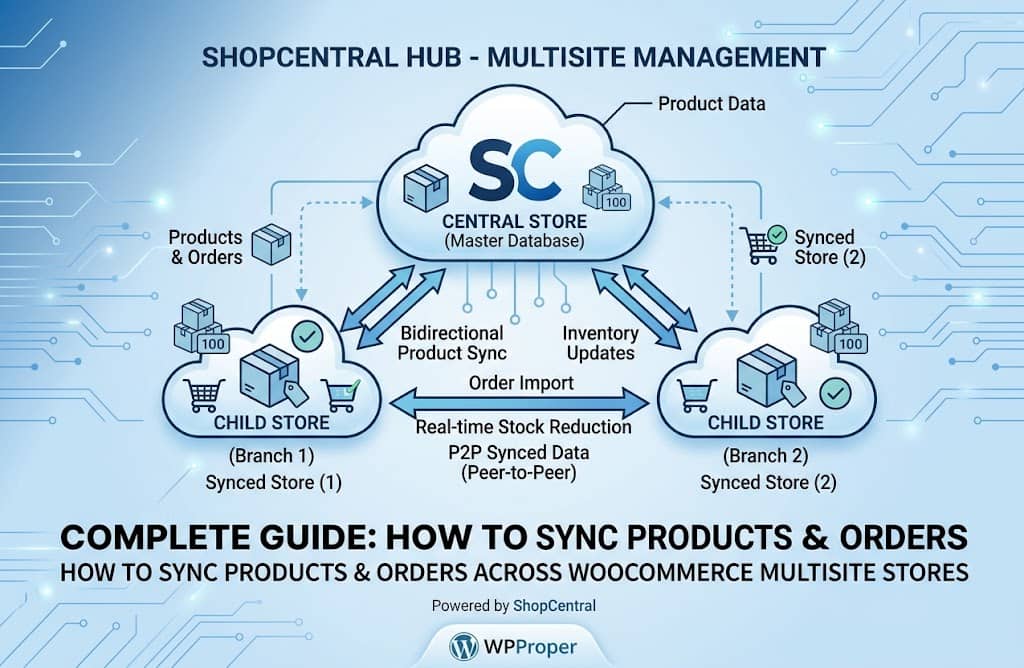
Scaling a WooCommerce business almost always means expanding beyond a single store. You might open a regional subdomain for a new market, launch a separate brand targeting a different audience, or run a B2B wholesale portal alongside your retail store. Whatever the reason, the moment you have two or more WooCommerce installations, you face an immediate operational problem: how do you keep them in sync?
Manual data entry across multiple dashboards leads to stock discrepancies, duplicate orders, price inconsistencies, and exhausted store managers. Proper WooCommerce multisite product sync eliminates all of this — automating the flow of products, inventory, and orders between stores so you can focus on growing your business instead of maintaining it.
In this guide, you’ll learn exactly how WooCommerce sync works under the hood, why native tools fall short, and how to build a robust, automated sync pipeline using ShopCentral — the most advanced WooCommerce multisite store management plugin available today.
- Understand the two architectures for multi-store WooCommerce networks
- Configure bidirectional product and inventory sync across all connected stores
- Set up background order import with duplicate prevention and retry logic
- Enable customer sync and cross-store analytics from one dashboard
- Bypass Cloudflare and server firewalls blocking your sync API calls
- Export all cross-store data for accounting, reporting, and warehousing
What Is WooCommerce Multisite Product Sync?
WooCommerce multisite product sync refers to the automated process of keeping product data — including stock quantities, prices, descriptions, images, variations, and metadata — consistent and up-to-date across two or more WooCommerce stores. When a sale occurs on Store A and reduces a shared product’s stock, Store B should reflect that reduction immediately. When you update a product price on your central hub, all connected stores should receive the update simultaneously.
Sync can operate at several levels of depth:
A true WooCommerce multisite product sync implementation handles all four layers simultaneously, ensuring that every store in your network reflects a single source of truth at all times. Without this, you risk overselling, customer confusion, accounting mismatches, and a warehouse fulfillment team working from incorrect stock numbers.
WordPress Multisite vs. Standalone Stores: Which Architecture to Choose
Before configuring any sync solution, you need to decide — or understand — which network architecture you’re working with. The term “WooCommerce multisite” is often used loosely to describe two very different setups:
Option A: WordPress Multisite Network
One WordPress installation hosts multiple sub-sites (e.g., store1.yourdomain.com, store2.yourdomain.com). They share the same codebase and database prefix, but each sub-site has its own WooCommerce instance.
Option B: Standalone Separate Installations
Each store is a fully independent WordPress + WooCommerce installation on its own server or hosting account. Connected via API, not database. This is the most common and most flexible architecture.
WordPress Multisite sharing a database does not automatically mean products sync between sub-sites. Each WooCommerce sub-site still maintains its own product tables. You still need a dedicated sync solution. ShopCentral works seamlessly with both architectures — it connects via the WooCommerce REST API regardless of whether your stores share a database or not.
For the purposes of this guide, we’ll use the broader definition: any network of two or more WooCommerce stores that need to share products, inventory, and orders — whether they’re on WordPress Multisite or completely separate installations. The solution and steps are identical either way.
WooCommerce Native Sync Limitations
WooCommerce ships with an impressive set of e-commerce features, but cross-store synchronization is not among them. Here is an honest audit of what WooCommerce provides natively — and where the gaps are that make a plugin essential:
| Sync Requirement | WooCommerce Native | ShopCentral |
|---|---|---|
| Bidirectional inventory sync on sale | ✗ | ✓ Automatic |
| Variable product + variation sync | ✗ | ✓ Recursive |
| Background order import from child stores | ✗ | ✓ Action Scheduler |
| Customer sync by email | ✗ | ✓ Automatic |
| Duplicate order prevention | ✗ | ✓ Built-in |
| Custom meta & ACF field sync | ✗ | ✓ Auto-detected |
| Cloudflare WAF bypass | ✗ | ✓ Cryptographic |
| Centralized cross-store analytics | ✗ | ✓ Full Suite |
The WooCommerce REST API provides the mechanism to read and write store data programmatically — but it doesn’t orchestrate sync logic, handle conflicts, manage retries, or create background queues. All of that needs to be built on top of the API, which is exactly what ShopCentral does.
🚨
Overselling a product due to unsynchronized stock across stores can trigger chargebacks, negative reviews, and refund costs that far exceed the investment in a proper sync plugin. A single oversell incident at scale can cost hundreds or thousands of dollars in refunds and customer goodwill. Don’t risk it.
ShopCentral: The Complete Sync Solution for WooCommerce Store Networks
ShopCentral (by DominoPress, v2.7.0) is purpose-built to solve every challenge described above. It is the only WooCommerce multisite store management plugin that combines a stunning modern dashboard, bidirectional inventory sync, background order processing, customer sync, firewall bypass, custom meta sync, and a comprehensive analytics suite — all in a single, cohesive package that connects to your stores via the WooCommerce REST API without storing your data on any third-party server.
🏛️ How ShopCentral’s Architecture Works
ShopCentral acts as a remote proxy viewer — data flows directly between your own servers via encrypted REST API. No third-party cloud. No database bloat on the hub. Webhook callbacks trigger sync events in real time.
How Product & Inventory Sync Works Under the Hood
Reading from ShopCentral’s source code, the ShopCentral_Product_Sync_Manager class hooks directly into WooCommerce’s core action system:
// Fires when any product is saved/updated
add_action('woocommerce_update_product', sync_product_details);

// Fires when simple product stock changes
add_action('woocommerce_product_set_stock', sync_product_stock);

// Fires when a variation's stock changes
add_action('woocommerce_variation_set_stock', sync_product_stock);

// Fires when checkout reduces order stock
add_action('woocommerce_reduce_order_stock', sync_order_stock_reduction);

// REST route for incoming child-store webhook callbacks
register_rest_route('shopcentral/v1', '/sync/order-callback', [
  'methods' => 'POST',
  'callback' => handle_remote_order,
]);
This means every stock change — whether from a manual admin update, a WooCommerce checkout, or an API call — is captured and propagated to all connected stores automatically. Variable products are handled recursively, covering all variations and their individual stock levels. This is true woocommerce multisite share products functionality working at the WooCommerce hook level, not at an external polling interval.
/sync/order-callback endpoint in real time.Step-by-Step: Setting Up Product & Order Sync with ShopCentral
Follow this complete tutorial to go from zero to a fully operational WooCommerce multisite product sync pipeline. Each step includes the exact admin path and any configuration notes you need.
Install & Activate ShopCentral on Your Hub Site
Your hub site is the central WordPress installation where ShopCentral will be installed — the “command center” from which all connected stores are managed.
- In your hub site’s WordPress admin, go to Plugins → Add New Plugin
- Search for “ShopCentral” and click Install Now, then Activate
- Or upload the plugin zip manually via Plugins → Add New → Upload Plugin
- After activation, you’ll be redirected to the ShopCentral dashboard automatically
Generate REST API Keys on Each Child Store
ShopCentral connects to child stores using the WooCommerce REST API. You need to generate API credentials on each store you want to connect.
- Log into each child store’s WordPress admin
- Go to WooCommerce → Settings → Advanced → REST API
- Click Add Key
- Set Description: “ShopCentral Hub” (or similar)
- Set User: Select an administrator account
- Set Permissions: Read/Write (required for sync)
- Click Generate API Key
- Copy the Consumer Key and Consumer Secret — you’ll need these in the next step
Connect Child Stores to ShopCentral
Now back in your hub site, connect each child store using the credentials you just generated.
- In your hub admin, navigate to ShopCentral → Stores
- Click the Add Store button
- Enter the child store’s full URL (e.g.,
https://childstore.com) - Paste in the Consumer Key and Consumer Secret from Step 2
- Click Connect Store
- ShopCentral will validate the connection and display a success confirmation
- Repeat for every child store you want to manage
After connection, the child store appears in your store switcher in the ShopCentral top navigation. Use it to instantly jump between store views — products, orders, customers, analytics — without logging in separately.
Enable Product & Inventory Sync
With stores connected, you can enable bidirectional product sync. This is the core of your WooCommerce multisite product sync setup.
- Go to ShopCentral → Stores and locate each child store
- Look for the Sync toggles on the store card
- Enable the Product Sync toggle (enables the
woocommerce_update_producthook sync) - Enable the Inventory Sync toggle (activates the stock hooks for bidirectional updates)
- ShopCentral automatically registers the required REST API webhooks on child stores
sync_product_stock hook, which propagates the updated quantity to all connected child stores via REST API calls. Variable products are synced recursively — every variation’s stock is updated individually.Configure Order Import & Customer Sync
This step sets up the pipeline to sync orders across WooCommerce sites — importing orders from child stores as real WooCommerce orders on your hub for centralized management and accounting compatibility.
- Go to ShopCentral → Stores
- On each child store card, locate the Order Import toggle (shown in green) and enable it
- Locate the Customer Sync toggle (shown in purple) and enable it
- Note: These toggles are only available for child stores, not the hub itself
- Go to ShopCentral → Orders to initiate the first manual sync
- Click Order Sync to open the sync modal with real-time progress tracking
- Configure batch size (50–50,000 orders per batch) and click Start Import
- Action Scheduler — background processing in 50-order chunks prevents timeouts on large imports
- Duplicate Prevention — each child order ID + store ID is tracked to prevent re-importing
- Full Order Reconstruction — billing, shipping, line items, coupons, fees, and metadata are all imported
- Customer Sync by Email — links orders to existing users or creates new customer profiles automatically
- Auto-Retry — failed order pushes are retried every 5 minutes via WP Cron
Push Products to Child Stores (WooCommerce Multisite Share Products)
Want to push products from your hub to child stores — the classic woocommerce multisite share products workflow? ShopCentral handles this through its Products module.
- Go to ShopCentral → Products in the hub dashboard
- Select the store using the store switcher at the top
- Find the product(s) you want to deploy and click Deploy / Sync
- ShopCentral matches by SKU in the target store — the product must exist there with the same SKU for updates, or will be created if using the Smart Product Creator (Pro)
- Use the Product Type filter to narrow down by simple or variable products
- For bulk operations, use the Sync Products Modal (redesigned 2-column layout with warning info)
Verify with the Analytics Dashboard & Activity Logs
After configuring sync, verify everything is working correctly using ShopCentral’s built-in analytics and logging tools.
- ShopCentral → Store Analytics — view revenue, orders, and product performance across all connected stores in aggregate
- ShopCentral → Product Analytics — identify top sellers and stock trends across the entire network
- ShopCentral → ShopCentral Logs — the centralized activity log viewer with date filter, feature/level filtering, bulk delete, copy-to-clipboard, and expandable context details. Check this after any sync operation to confirm it succeeded.
Advanced Configuration: Firewall Bypass, ACF Sync & Automation
For stores running behind Cloudflare, Bluehost security rules, or similar firewall setups, and for stores using Advanced Custom Fields (ACF) or complex product metadata, ShopCentral provides enterprise-grade configuration options that most other plugins don’t address at all.
🔥 Cloudflare WAF Bypass — Step by Step
If your child stores are behind Cloudflare’s Web Application Firewall (WAF), automated API requests can be blocked as suspected bot traffic. ShopCentral’s Smart Firewall Bypass generates a unique cryptographic shared_secret per store and injects it as a custom X-ShopCentral-Secret HTTP header on all outbound API calls.
- Go to ShopCentral → Stores and click the Firewall Setup button on any child store
- An interactive modal opens showing the ready-to-copy Cloudflare WAF rule expressions
- Follow the step-by-step instructions in the modal to add the WAF bypass rule to your Cloudflare dashboard
- The rule whitelists only requests bearing the correct
X-ShopCentral-Secretheader — no static IP whitelisting required
ShopCentral-Core User-Agent string on all outbound requests, which helps bypass Bluehost and cPanel-based security filters that block non-browser user agents.🗃️ Custom Meta & ACF Repeater Sync
Many WooCommerce stores use Advanced Custom Fields (ACF) or custom product metadata to store specifications, warranty info, custom tabs, or supplier data. ShopCentral’s ACF Auto-Detection system handles this automatically:
This makes ShopCentral’s woocommerce multisite store management capabilities far superior to simpler sync tools that only handle standard WooCommerce fields and miss all custom meta data.
📤 Cross-Store Data Export Suite
Go to ShopCentral → Export Tools to export comprehensive data from all connected stores simultaneously. Available export types and filters:
🧾 Orders
⭐ Product Reviews
🏷️ Categories
🔖 Tags
👤 Customers
🎫 Coupons
Filter exports by This Month, This Year, or All Time. Perfect for monthly accounting reports, data migration, and executive-level cross-store revenue summaries.
ShopCentral Pro: Taking Sync to Enterprise Level
The free version of ShopCentral is a powerful foundation for WooCommerce multisite product sync. The Pro upgrade turns your setup into a fully automated, revenue-generating multi-store empire. Here are the exclusive Pro features most relevant to sync workflows:
Troubleshooting Common Sync Issues
Even with a well-configured sync setup, issues can occur. Here are the most common problems and exactly how to resolve them:
Fix: Ensure the product exists in the target store with an identical SKU. Check ShopCentral → Logs for the detailed WooCommerce API error message (ShopCentral v2.7.0+ shows full error details from the API response). Correct any field validation issues in the target store and retry.
Fix: Use ShopCentral’s built-in Firewall Setup modal (ShopCentral → Stores → Firewall Setup). Copy the ready-made Cloudflare WAF bypass rule expression and add it to your Cloudflare dashboard. The cryptographic
X-ShopCentral-Secret header will whitelist only ShopCentral’s requests.Fix: ShopCentral uses Action Scheduler for background processing in 50-order chunks — timeouts are not possible under normal conditions. If issues persist, reduce the batch limit in the Order Sync modal (minimum 50 orders per batch). Check that Action Scheduler is running correctly: WooCommerce → Status → Scheduled Actions.
Fix: Check ShopCentral → Logs and filter by “Order Import” events. Look for
DUPLICATE_SKIP entries — these confirm the system is working correctly. If true duplicates persist, verify that no other plugin is also creating WooCommerce webhooks for the same events.Fix: Ensure you’re using the full HTTPS URL (e.g.,
https://childstore.com, not http://). Verify the child store’s SSL certificate is valid. Confirm REST API is enabled in the child store: WooCommerce → Settings → Advanced → REST API. Also ensure the API key has Read/Write permissions.Frequently Asked Questions
Q. Does WooCommerce multisite product sync work between stores on different hosting providers?
Yes. ShopCentral connects via the WooCommerce REST API — meaning stores can be on completely different servers, different hosting providers, or even different continents. As long as each store has a valid SSL certificate and REST API enabled, they can be connected and synced.
Q. How does ShopCentral handle WooCommerce multisite share products for variable products?
ShopCentral uses recursive variable product sync. When a variable product’s stock or data changes, the sync propagates to all variations individually — including their SKUs, stock quantities, prices, and attributes. This means a product with 50 color/size combinations is fully synced across all stores, not just at the parent product level.
Q. Can I sync orders across WooCommerce sites to be compatible with Xero?
Yes. ShopCentral v2.6.0+ imports child store orders as real WooCommerce orders on the hub site — complete with billing, shipping, line items, coupons, fees, and full metadata. This makes them fully visible to Xero WooCommerce integrations, warehouse systems, and any order-based tool that reads from WooCommerce’s native order tables.
Q. Will ShopCentral slow down my hub site with all the cross-store data?
No. ShopCentral uses a remote proxy architecture. When you view orders or products from a child store in the dashboard, data is fetched on-the-fly directly from the child store’s API — nothing is permanently stored in your hub’s database. Your hub site’s database size stays the same regardless of how many products or orders your connected child stores have.
Q. Does ShopCentral support WooCommerce HPOS (High-Performance Order Storage)?
Yes, fully. ShopCentral explicitly declares HPOS compatibility in its plugin code and is tested with WooCommerce 10.8. You can safely enable Custom Order Tables on both the hub and child stores without any compatibility issues.
Q. How many stores can I connect with ShopCentral’s free version?
The free version of ShopCentral allows you to connect and manage your main store from the central dashboard with full analytics and viewing capabilities. For connecting multiple external stores, Pro plans start at Personal (3 stores), Professional (5 stores), and Business/Unlimited for unlimited connections. Store connection limits are enforced via the Freemius license management system.
Q. Is my store data sent to any external or third-party server?
No. ShopCentral connects your hub directly to your child stores using the WooCommerce REST API. All data flows directly between your own servers. No store data passes through DominoPress’s servers or any third-party cloud. The optional, opt-in usage telemetry (which can be disabled) collects only anonymous plugin usage statistics — never product, order, or customer data.
Conclusion & Final Recommendation
Setting up reliable WooCommerce multisite product sync is one of the most impactful technical investments you can make for a multi-store operation. The difference between manually updating stock in three dashboards and having it happen automatically in milliseconds — powered by webhook callbacks and Action Scheduler background queues — is the difference between a store you manage and a store that runs itself.
ShopCentral is the only woocommerce multisite store management plugin that delivers every layer of this infrastructure: bidirectional inventory sync via WooCommerce hooks, background order import with duplicate prevention, customer sync by email, ACF metadata propagation, Cloudflare WAF bypass, centralized analytics, comprehensive export tools, and an activity log — all without storing your data outside your own servers.
Whether you’re using WordPress Multisite or completely standalone installations, whether you run three stores or thirty, ShopCentral’s architecture scales with your business without introducing database bloat or performance penalties on your hub site. For anyone serious about sync orders across WooCommerce sites and maintaining consistent product data network-wide, it is the definitive solution.
Quick Recap
In this guide we covered the full technical picture of WooCommerce multisite product sync: what it is, the two network architectures you might be working with, why WooCommerce’s native tools are insufficient, and how to implement a complete sync pipeline using ShopCentral in seven practical steps.
We also explored advanced configurations — Cloudflare WAF bypass, ACF and custom meta synchronization, comprehensive data exports — and covered the most common troubleshooting scenarios you’re likely to encounter. Finally, we answered the key questions around how ShopCentral’s architecture ensures that your ability to sync orders across WooCommerce sites doesn’t come at the cost of hub-site performance or data privacy.
For any store operator running more than one WooCommerce site — whether on WordPress Multisite or separate standalone installations — ShopCentral is the most complete, most technically robust, and most actively maintained solution available. Install it today and stop managing your stores manually, one dashboard at a time.
