

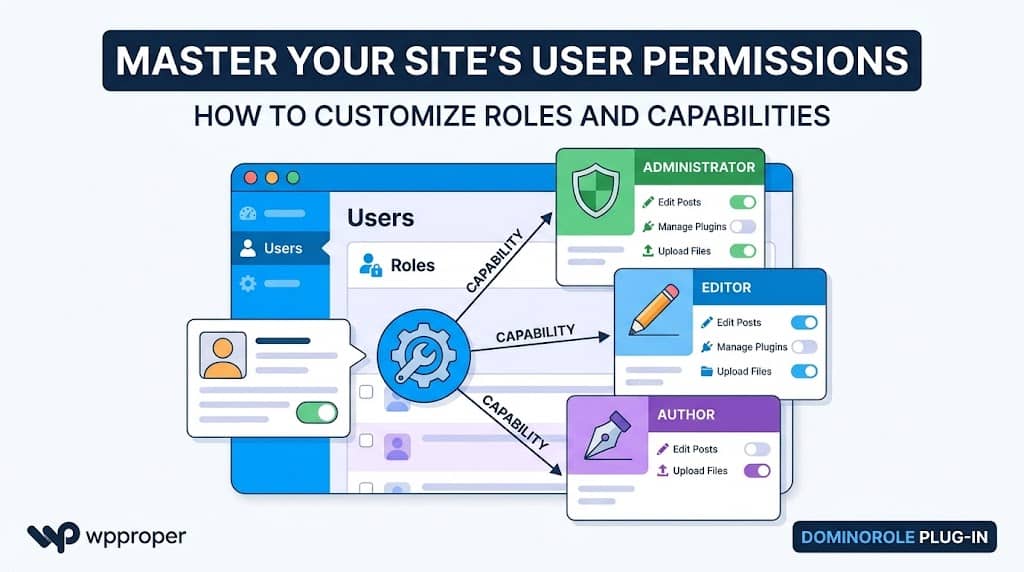
WordPress’s built-in access control system is both powerful and misunderstood. Every action a user takes on your site — from publishing a post to installing a plugin — is governed by a system of roles and capabilities. When configured correctly, this system lets you build precise, secure permission structures for every type of user on your site. When ignored, it’s a security liability waiting to be exploited.
The problem is that WordPress’s default user management screens barely scratch the surface of what’s possible. You can assign a role, and that’s about it. To truly customize wordpress capability assignments, create custom roles, or grant time-limited permissions, you need a proper user role editor.
In this guide, we’ll teach you everything you need to know about WordPress roles and capabilities — and walk you through the complete process of managing them using DominoRole, the most modern and feature-complete wordpress user role editor available in 2025.
- Understand the difference between roles and capabilities in WordPress
- Create, clone, and rename custom roles from scratch — no coding
- Fine-tune every wordpress capability on a role using a visual 4-tab editor
- Preview exactly which admin menus a capability unlocks before saving
- Assign multiple roles to one user simultaneously
- Grant time-limited permissions that expire automatically
- Auto-detect new capabilities added by third-party plugins
- Export and import your role configuration between WordPress sites
WordPress Roles vs. Capabilities — The Complete Explainer
Before diving into any user role editor, you need to understand the two fundamental concepts that underpin WordPress’s entire access control system: roles and capabilities. These two things are related but distinct, and confusing them is the most common mistake beginners make.
What Is a Role?
A role is a named label assigned to a user that bundles a set of capabilities together. Think of it as a job title. WordPress ships with five: Administrator, Editor, Author, Contributor, and Subscriber.
What Is a Capability?
A capability is a specific permission string that either grants or denies a particular action. They are the individual building blocks that roles are made from. WordPress core has ~70; WooCommerce adds dozens more.
edit_posts, publish_posts, upload_files, manage_woocommerce, install_pluginsA Role is simply a container that holds a list of Capabilities. When you assign a user the “Editor” role, WordPress looks up the list of capabilities attached to that role and grants them all to the user. A wp user role editor lets you see this list and change it — adding or removing specific capabilities from any role.
How WordPress Checks Capabilities at Runtime
Every time WordPress performs a permission check — whether showing a menu item, allowing a button click, or responding to a REST API request — it calls current_user_can('capability_name'). This function:
- Gets the current user’s roles from the database
- Looks up which capabilities are assigned to those roles
- Applies any user-level capability overrides (e.g., from temporary permissions)
- Returns
true(allowed) orfalse(denied)
This means any wordpress user roles editor that modifies role capability assignments takes effect immediately for all users with that role — no cache clearing, no logout required.
The 5 Default WordPress Roles and Their Limitations
WordPress ships with five predefined roles. Here’s exactly what each one can do — and where each one breaks down in real-world scenarios:
| Role | What They Can Do | Real-World Limitation |
|---|---|---|
| Administrator | Everything — full site control | You can’t give partial admin powers without full admin risk |
| Editor | All posts, pages, comments, categories | Can’t manage WooCommerce orders or SEO settings |
| Author | Write and publish their own posts, upload media | Can’t edit others’ posts or manage categories |
| Contributor | Write posts — but not publish or upload media | Can’t add images to their own posts — frustrating for writers |
| Subscriber | Log in and read private content | Almost no capabilities — useless as a staff role |
Why You Need a Dedicated User Role Editor
You can modify WordPress roles via code — using add_role(), remove_role(), and $role->add_cap(). But this approach has serious downsides that make a proper user role editor essential for anyone who isn’t a PHP developer — and even for those who are:
Meet DominoRole: The Modern User Role Editor for WordPress
DominoRole (by DominoPress, v2.0.1) is a complete rebuild of what a user role editor should be in 2025. While older alternatives still use the same table-based interfaces they launched with a decade ago, DominoRole is built from scratch with a React + Chakra UI frontend that renders a fast, interactive, visually stunning admin dashboard — one that feels more like a modern SaaS application than a WordPress plugin.
🏗️ DominoRole’s Dashboard Pages
Each of these pages is registered as a WordPress admin submenu via add_submenu_page() under the main DominoRole menu, with access gated by the custom dominorole_manage capability — so you can safely delegate DominoRole access to a trusted admin without handing over full site control.
Step-by-Step: Complete User Role Editor Tutorial
Follow these eight steps to go from a fresh DominoRole install to a fully customized WordPress permission structure. Each step includes the exact navigation path and actionable guidance.
Install & Activate DominoRole
Get the plugin running on your WordPress site in minutes.
- In your WordPress admin, go to Plugins → Add New Plugin
- Search for “DominoRole” and click Install Now
- Click Activate
- A new DominoRole menu item (🛡️) appears in your sidebar at position 75
- Click it to open the React-powered dashboard — no page reload required
Start with a Preset Role (Fastest Path)
Before building a role from scratch, check whether one of DominoRole’s 7 one-click preset templates covers your needs. This is the fastest way to set up a correctly configured role with the right wordpress capability assignments.
- Navigate to DominoRole → Permission Presets
- Review the 7 available presets and their included capabilities
- Click Create Role next to the preset that fits your use case
- DominoRole instantly creates a custom role in your database with all pre-defined capabilities applied
Create a Custom Role from Scratch
If no preset matches your needs, build a brand new role. This is the core of any user role editor workflow.
- Go to DominoRole → Role Manager
- Click the Create Role button
- Enter a Role ID — lowercase, underscores only (e.g.,
community_manager) - Enter a Display Name (e.g., “Community Manager”)
- Click Create — the role is immediately added to the two-column role grid
- The new role starts with only the
readcapability (the safest baseline)
Fine-Tune Capabilities with the 4-Tab Permission Manager
This is the heart of DominoRole’s wordpress user roles editor experience — a multi-tab modal that makes wordpress capability management genuinely intuitive.
- On the Role Manager page, click the Manage Permissions (or pencil) button on any custom role
- A modal opens with four tabs — use whichever fits your workflow
read, edit_posts, upload_files, etc.) with detailed tooltips explaining exactly what each one does. Perfect for beginners.Use the Menu Access Viewer Before You Save
This is DominoRole’s most unique feature — and the one that genuinely changes how you think about wordpress capability management. Before enabling any capability, you can see exactly which admin menus it unlocks.
- In any permission tab, find a capability you’re considering enabling
- Click the Menu Access button next to it
- A modal opens showing a two-column table: Main Menu | Sub Menu
- Review exactly which parts of the WordPress admin will become visible
- Make an informed decision — then toggle the capability on or off
manage_options to your “Support Agent” role, the Menu Access Viewer reveals it unlocks the Settings menu and all its subpages — almost certainly not what you want for a support agent. This prevents costly permission mistakes.Assign the Role to Users
With your custom role configured, assign it to the right users — including assigning multiple roles simultaneously.
- Go to DominoRole → Users Manager
- Use the search bar or role filter to find the user
- Click the role selector on the user row — choose a single role or select multiple roles simultaneously
- Click Save — the user immediately has the combined capabilities of all assigned roles
Clone a Role for Variations
Need a role that’s almost identical to an existing one, with just a few capability differences? Clone instead of rebuild — one of the most time-saving features in any user role editor.
- In DominoRole → Role Manager, find the role you want to duplicate
- Click the Clone button on the role card
- Enter a new Role ID and Display Name for the clone
- Click Clone Role — all capabilities from the source role are copied to the new one
- Open the Permission Manager on the clone and adjust the few capabilities that differ
manage_options. Clone your existing “Editor” custom role, then add just the one extra capability. Done in 60 seconds.Export Your Configuration for Reuse
Once your role setup is perfected, export it so you never have to rebuild it again. This is invaluable for agencies deploying the same configuration on multiple client sites.
- Navigate to DominoRole → Import / Export
- Click Export Roles — a JSON file is downloaded to your computer
- On any other WordPress site with DominoRole installed, go to Import / Export
- Upload the JSON file and click Import
- All your custom roles and their capability assignments are instantly recreated
Advanced Features: Temporary Permissions, Smart Detection & Import/Export
These three features take DominoRole beyond what any other wordpress user role editor currently offers — and they’re all available in the free version.
⏱️ Temporary Permissions — Time-Limited Capability Grants
Sometimes you need to grant a specific wordpress capability to one user for a short window — without changing their permanent role. DominoRole’s Temporary Permissions system does exactly this, and it does it securely:
- Runtime Injection: The
user_has_capfilter hook grants the capability dynamically — it is never permanently written to the user’s role - Auto-Expiry: WordPress’s
admin_inithook triggers theexpire_permissions()method on every admin page load, cleaning up any entries past their expiry timestamp - Status Tracking: Active, Expired, and Revoked states are visible in the Temporary Permissions dashboard
- Zero Permanent Change: The user’s permanent roles are completely untouched — the permission simply stops being injected once it expires
How to Grant a Temporary Permission:
- Go to DominoRole → Temporary Permissions
- Click Grant Permission
- Search for and select the User
- Choose the specific Capability to grant (e.g.,
publish_posts) - Set the Expiry Date & Time using the built-in datetime picker
- Click Grant — the user immediately has the capability, and it disappears automatically at expiry
publish_posts for 8 hours. It expires automatically at midnight — no manual revocation, no forgotten access, no security risk.🧠 Smart Capability Detector — Never Miss a New Permission
Every plugin you install adds its own set of capabilities to WordPress — and most site admins never know they exist. The Smart Capability Detector solves this completely.
manage_galleries came from your new gallery plugin or somewhere else.Navigate to DominoRole → Smart Detector to see a full list of all detected capabilities with their origin plugins. Acknowledge any that you’ve reviewed — they won’t re-appear in the notification until the next new detection.
Managing WooCommerce Capabilities with DominoRole
WooCommerce introduces its own set of capabilities into WordPress that a standard user role editor may not handle gracefully. DominoRole is built with WooCommerce awareness at its core — both in the plugin’s PHP backend and in its capability groupings.
// Smart Login Redirect: admin-cap users → wp-admin, customers → WC account
add_filter('woocommerce_login_redirect', dominorole_smart_login_redirect, 99, 2);
add_filter('login_redirect', dominorole_smart_login_redirect, 99, 3);

// WooCommerce admin block: apply custom capability checks
add_filter('woocommerce_prevent_admin_access', dominorole_handle_wc_admin_block, 99);

// Admin capabilities recognized by DominoRole for WC users:
['manage_woocommerce', 'view_admin_dashboard', 'manage_options', 'edit_posts', ...]
This means DominoRole’s Smart Login Redirect automatically routes WooCommerce-capable users (those with manage_woocommerce) to wp-admin after login, while routing regular customers to the WooCommerce My Account page — with zero configuration.
In the Permission Manager’s All Permissions tab, WooCommerce capabilities appear as a dedicated grouped section. Key capabilities you’ll manage for WooCommerce roles include:
manage_woocommerceview_woocommerce_reportsedit_shop_ordersread_shop_orderspublish_shop_ordersmanage_product_termsedit_productsdelete_productsUse the Shop Manager preset as your starting point, then use the Menu Access Viewer to confirm which WooCommerce admin sections become accessible before assigning the role to your store staff.
Security Best Practices for WordPress Role Management
Managing roles and capabilities isn’t just about convenience — it’s a security discipline. Misconfigured permissions are one of the leading causes of WordPress site breaches. Follow these principles whenever using a wp user role editor:
🎯
⏱️
🧠
🛡️
📦
Frequently Asked Questions
Q. Is a user role editor plugin safe to use? Can it break my site?
Yes — with the right plugin. DominoRole is specifically designed to be safe: it protects the five default WordPress roles from modification, stores all changes in the database (not in code), and uses standard WordPress capability APIs. The biggest risk with any user role editor is accidentally removing capabilities from the Administrator role — DominoRole prevents this at the API level.
Q. What is a wordpress capability and how do I know which ones to enable?
A wordpress capability is a permission string like edit_posts or manage_woocommerce that controls whether a user can perform a specific action. To know which ones to enable, use DominoRole’s “Most Used Permissions” tab (includes tooltips explaining each capability) and the Menu Access Viewer (shows exactly which admin menus a capability unlocks before you save).
Q. Can I use DominoRole to manage roles on a WordPress Multisite network?
DominoRole manages roles on a per-site basis. On a Multisite network, you’d install and activate it network-wide (or per site) and manage each subsite’s roles independently from that subsite’s admin. Roles created on one subsite do not automatically propagate to other subsites — use the Import/Export feature to copy configurations across subsites.
Q. What happens if I deactivate DominoRole — do my custom roles disappear?
Custom roles created through any wordpress user role editor are stored in WordPress’s wp_user_roles option in the database — not in the plugin itself. If you deactivate DominoRole, your custom roles remain in place. The plugin simply provides the interface to manage them. Users keep their roles and capabilities even after the plugin is deactivated.
Q. How do I give someone editor access but block them from accessing Settings?
Create a custom “Custom Editor” role (either from scratch or by cloning the Editor preset). In the Permission Manager, use the Active Permissions tab to verify which capabilities are active. Use the Menu Access Viewer on any capability to confirm it doesn’t unlock Settings. Remove any capability tied to the Settings menu (primarily manage_options). This is the precise, visual control that a dedicated user role editor makes possible.
Q. Does DominoRole work with page builders like Elementor or Divi?
Yes. Page builders add their own capabilities (like Elementor’s edit_with_elementor). When you install Elementor, DominoRole’s Smart Capability Detector will identify the new capabilities. You can then view them in DominoRole → Smart Detector, assign them to the appropriate roles in the Permission Manager, and use the Menu Access Viewer to confirm which builder menus those capabilities unlock.
Conclusion
WordPress roles and capabilities are a powerful access control system — but only if you know how to use them. The five default roles are a starting point, not a complete solution. As soon as your site grows beyond a personal blog, you need a proper user role editor that can create custom roles, fine-tune individual capabilities, and manage user access with precision.
DominoRole is the most complete and modern wordpress user role editor available in 2025. Its React-powered dashboard, 4-tab Permission Manager, Dynamic Menu Access Viewer, Smart Capability Detector, and runtime-based Temporary Permissions system set a new standard for what this category of plugin should deliver. And unlike older alternatives, it protects your site by design — enforcing strict rules around default role modification at the REST API level.
Whether you’re setting up a wp user role editor for the first time or migrating from an outdated solution, the 8-step tutorial in this guide gives you everything you need to get started. Install DominoRole, create your first custom role with a one-click preset, and discover how much easier and safer WordPress access management can be.
Quick Recap
In this guide, we covered the complete picture of WordPress role and capability management: the conceptual foundation of how roles and capabilities work, why the five default roles are insufficient for most real-world sites, and why a dedicated user role editor is essential.
We walked through an 8-step tutorial using DominoRole — from installation through preset creation, custom role building, capability fine-tuning, the unique Menu Access Viewer, multi-role user assignment, role cloning, and JSON export. We then explored three advanced features (Temporary Permissions, Smart Detector, Import/Export) and covered WooCommerce-specific role management and security best practices.
The wordpress user role editor you use matters — choose one that explains what each wordpress capability does, shows you what it unlocks, and protects your site from accidental misconfiguration. DominoRole does all of this better than any alternative available today.
