

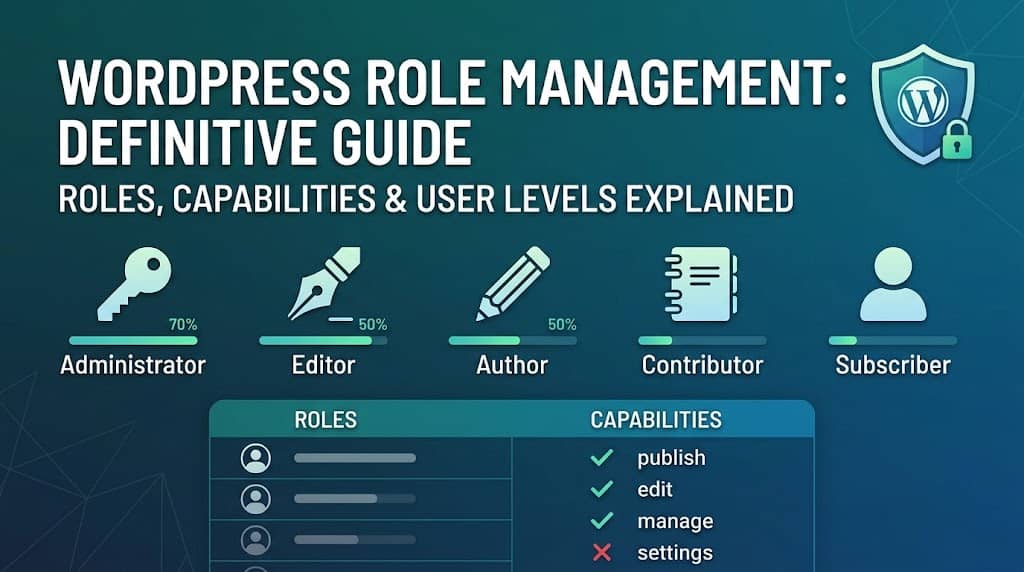
If you’ve ever wondered why one person on your WordPress site can publish articles while another can only read them — or why your shop manager can’t accidentally delete your theme — the answer lies in one of WordPress’s most powerful yet misunderstood systems: WordPress role management.
At its core, WordPress role management is the framework that governs who can do what on your website. It’s the silent guardian standing between your sensitive settings and the wrong pair of hands. Whether you’re running a solo blog, a bustling multi-author magazine, a WooCommerce store with a dozen employees, or a sprawling membership community, understanding how WordPress roles, capabilities, and user levels work is not optional — it’s essential.
This guide will take you from absolute beginner to confident administrator. We’ll break down every default role, demystify the difference between roles and capabilities, explain the legacy of WordPress user levels, walk through real-world use cases for custom roles, and share professional best practices that even experienced developers often overlook.
By the end, you’ll not only understand the theory — you’ll have the practical knowledge to implement a rock-solid permission system on any WordPress site.
What Is WordPress Role Management?
WordPress role management refers to the system of assigning predefined sets of permissions — called roles — to users on a WordPress site. Each role bundles together a specific collection of capabilities (individual permissions) that determine what a user can see, create, edit, delete, or manage within the WordPress admin area and on the front end.
Think of roles like job titles in a company. A “Marketing Executive” has access to certain systems, while an “Accountant” accesses entirely different ones, and a “CEO” can access everything. WordPress operates on exactly the same logic. The “Administrator” is your CEO — they have full control. A “Subscriber” is more like a guest with a badge — they can log in and read content, but nothing more.
💡 Key Insight: WordPress role management is not just about security — it’s about workflow efficiency. When every user has exactly the right permissions, teams collaborate better, mistakes are minimized, and your site stays organized.
The system is built into the core of WordPress and has been there since the very early versions. But what started as a simple five-role structure has evolved dramatically. Today, plugins, themes, and WooCommerce extensions add their own custom capabilities, creating a complex permission ecosystem that demands careful management.
Why Does Role Management Matter?
Consider this scenario: you hire a freelance writer to contribute articles to your blog. If you give them Administrator access (perhaps because you don’t know the alternatives), they now have the power to delete all your pages, change your theme, install malicious plugins, or lock you out of your own site — accidentally or otherwise.
Proper WordPress role management prevents this entirely. By assigning that writer the “Author” role, they can write and publish only their own posts — nothing else is within their reach. This principle of least privilege — giving users only the minimum access they need — is the cornerstone of a secure and well-organized WordPress site.
Real-World Scenarios Where Role Management Is Critical:
- Multi-author blogs with contributors at different trust levels
- WooCommerce stores with separate roles for Shop Managers, Accountants, and Support Agents
- Membership sites where subscribers access gated content
- Agencies managing client sites with limited-access client roles
- Educational platforms with Teacher and Student roles
- Corporate intranets with department-specific permissions
Roles vs. Capabilities: Understanding the Difference
One of the most common points of confusion in WordPress permission systems is the distinction between roles and capabilities. While these two concepts are deeply intertwined, they are fundamentally different things, and understanding the difference is the key to truly mastering WordPress permissions.
| Concept | Definition | Example |
|---|---|---|
| Role | A named container that bundles a set of capabilities. Assigned to users as a label. | “Editor”, “Author”, “Shop Manager” |
| Capability | A specific, atomic permission that grants or denies a particular action. | edit_posts, publish_posts, manage_options |
| Meta Capability | A dynamic capability that WordPress maps to primitive capabilities based on context (e.g., who owns a post). | edit_post (singular) — context-dependent |
How Roles and Capabilities Interact
In WordPress, a role is essentially a named group of capabilities stored in the database (specifically in the wp_user_roles option in the wp_options table). When you assign a role to a user, WordPress grants them all the capabilities that role contains.
Here’s the crucial part that many site owners miss: capabilities can exist independently of roles. WordPress allows you to grant capabilities directly to individual users without changing their role. This means a user assigned the “Author” role could be specifically granted manage_categories — a capability not in the default Author role — without changing their role title. This distinction becomes extremely powerful in complex site configurations.
⚠️ Common Mistake: Many WordPress administrators confuse “the user has this role” with “the user has exactly these capabilities.” In reality, a user can have capabilities granted or denied at the individual level that override or supplement their role’s capabilities. Always check both.
Primitive vs. Meta Capabilities
WordPress distinguishes between two types of capabilities:
- Primitive Capabilities: These are explicitly stored in a role’s capability list. They are simple true/false flags — for example,
publish_postsmeans a user can publish posts, period. - Meta Capabilities: These are dynamic and context-aware. For example,
edit_post(singular) is a meta capability. WordPress evaluates it differently depending on whether the user owns the post or not. An Author withedit_postscan edit their own posts, but not another author’s — WordPress uses the meta capability system to enforce this context-sensitive rule.
Understanding this distinction helps you build more precise permission systems, especially when developing custom themes or plugins that integrate with the WordPress capability API.
Default WordPress Roles Breakdown
WordPress ships with five default roles out of the box. These roles form a hierarchy — each higher role builds upon the capabilities of the roles below it. Let’s break each one down in detail, including the exact capabilities they possess and the ideal use cases for each.
What Are WordPress User Levels?
If you’ve been researching WordPress user management, you may have encountered the term “WordPress user level” and wondered how it relates to roles. The answer involves a bit of WordPress history.
WordPress user levels were the original access control system used in very early versions of WordPress (before WordPress 2.0). The system used a simple numerical scale from Level 0 to Level 10, where a higher number meant more access. Level 0 was the equivalent of today’s Subscriber, while Level 10 was effectively the Administrator.
The Old User Level System (Pre-WordPress 2.0)
| Level | Modern Equivalent | Access Level |
|---|---|---|
| Level 0 | Subscriber | Can read only |
| Level 1 | Subscriber+ | Can write posts (no publishing) |
| Levels 2–4 | Contributor / Author | Progressively more post control |
| Levels 5–8 | Editor | Manage others’ content |
| Levels 9–10 | Administrator | Full site control |
Are User Levels Still Used Today?
The short answer is: no, not for access control. WordPress deprecated the user level system with the introduction of roles and capabilities in WordPress 2.0. The roles-based system is far more flexible, extensible, and readable — making it vastly superior.
However, user levels weren’t completely removed from the codebase. You may still see a wp_user_level user meta field stored in the database for backward compatibility with very old plugins or themes. Some legacy code and older documentation still reference user levels, which is why understanding this WordPress user level history is important for debugging and compatibility purposes.
✅ Key Takeaway: If you’re building something new on WordPress, always use the roles and capabilities system — never rely on numeric user levels. They are a relic of the past and should be treated as such. The modern capability-based approach gives you infinitely more precision and control.
How Modern WordPress Maps Levels to Roles
For backward compatibility, WordPress automatically sets the wp_user_level meta when a role is assigned:
- Administrator → Level 10
- Editor → Level 7
- Author → Level 2
- Contributor → Level 1
- Subscriber → Level 0
These are set for database compatibility only. No modern WordPress code should be written to check user levels — always use current_user_can() or user_can() with specific capability strings.
Creating and Managing Custom Roles
The five default WordPress roles cover many common use cases, but real-world sites — particularly those with WooCommerce stores, LMS platforms, or complex team structures — almost always need custom roles tailored to their specific workflows.
Custom roles allow you to create a permission set that exactly matches a real-world job function. For example, instead of giving a WooCommerce shop accountant the full “Shop Manager” role (which includes product management they don’t need), you can create an “Accountant” custom role with only view_woocommerce_reports, read_shop_order, and export capabilities.
Creating Custom Roles with Code
WordPress provides the add_role() function to programmatically create custom roles. Here’s an example of creating a “Community Manager” role:
add_role(
  'community_manager',
  'Community Manager',
  [
    'read'             => true,
    'moderate_comments' => true,
    'list_users'        => true,
    'edit_users'        => true,
    'manage_categories' => true,
  ]
);
⚠️ Important: Always wrap add_role() inside a plugin activation hook, not in a function that runs on every page load. Roles are stored in the database, so calling add_role() repeatedly is harmless but wasteful. Better practice is to run it once on plugin activation.
Role Cloning: The Smart Way to Create Custom Roles
Instead of starting from scratch, role cloning lets you duplicate an existing role and make targeted modifications. This is far faster and less error-prone — for instance, if you need a role “almost like Editor but without the ability to delete other people’s posts,” you clone Editor and remove the delete_others_posts capability.
Cloning is also the safest way to experiment with permission configurations. You can clone a role, test it with a secondary user account, verify everything works as intended, and then confidently assign it to real users — all without ever touching the original role.
Ready-Made Role Presets for Common Jobs
Not sure which capabilities to assign? You don’t always need to start from scratch. Many sites use the same types of roles repeatedly. Some common role presets based on real-world job functions include:
Advanced Capabilities: WooCommerce, Elementor & More
One of the most underappreciated aspects of WordPress role management is how dramatically the capability landscape expands when you install plugins. Plugins like WooCommerce, Elementor, LearnDash, and countless others add dozens — sometimes hundreds — of new capabilities to your site.
WooCommerce Capabilities
WooCommerce is the most common source of extended capabilities on WordPress sites. It adds a comprehensive set of capabilities covering products, orders, coupons, and reporting. Understanding these is critical for building proper e-commerce team structures. Key WooCommerce capabilities include:
| Capability | What It Allows | Recommended For |
|---|---|---|
manage_woocommerce |
Full WooCommerce control | Shop Manager |
view_woocommerce_reports |
Access to sales reports | Accountant, Manager |
edit_shop_orders |
Manage customer orders | Support Agent, Fulfillment |
edit_products |
Create & edit products | Product Manager |
edit_shop_coupons |
Manage discount coupons | Marketing Manager |
Elementor Capabilities
Elementor adds its own capabilities that control who can use the page builder. These are particularly important for agencies where clients should be able to edit content but not access the template library or global settings:
access_elementor_editelementor_library_viewelementor_library_editelementor_general_settingsThe Hidden Capabilities Problem
Here’s a challenge that even experienced WordPress administrators face: when a plugin is installed, it often registers new capabilities — but it doesn’t loudly announce this. These capabilities may remain unassigned, meaning no role has access to them, which can cause features to appear broken or inaccessible.
Conversely, some plugins automatically grant their capabilities to the Administrator role upon installation, potentially expanding that role’s power without your knowledge. In a well-managed site, every capability change should be intentional and documented.
This “hidden capabilities problem” is one of the main reasons why sophisticated role managers include capability detection tools — automatically scanning your site for newly registered capabilities each time a plugin is activated, so you never have to guess what changed.
Temporary Permissions & Time-Limited Access
Traditional WordPress role management is binary: a user either has access or they don’t, indefinitely. But the real world doesn’t work that way. Access needs are often time-bound, and managing the cleanup of temporary access manually is a recipe for forgotten permissions and security vulnerabilities.
This is where temporary permissions come in — a modern evolution of WordPress role management that allows you to grant time-limited access with automatic expiry.
Freelance Developer Access
Grant temporary Administrator access for 48 hours. When the deadline passes, access is automatically revoked — no forgotten cleanup, no security risk.
One-Time Publish Access
A Contributor needs to publish just one time-sensitive article. Grant them publish_posts for 24 hours only.
Event-Based Access
Give a guest expert temporary Editor access during a week-long content sprint. Their access expires automatically at the end of the event.
Temporary permissions operate at two levels. Temporary roles replace or supplement a user’s primary role for a set period — when expired, their original roles are automatically restored. Temporary capabilities are more granular — they grant a specific capability to a user for a set time without modifying their role at all.
The combination of these two approaches gives WordPress site administrators unprecedented flexibility in managing access — particularly valuable for agencies, SaaS platforms, and any site where multiple stakeholders need varying levels of access at different times.
Best Practices for WordPress Role Management
Knowing the theory is only half the battle. Effective WordPress role management requires consistent discipline in how you apply these concepts day-to-day. Here are the professional best practices used by experienced WordPress developers, security experts, and agency teams.
Apply the Principle of Least Privilege
Always assign the lowest-level role that still allows a user to do their job effectively. It’s far easier to upgrade permissions when needed than to deal with the fallout of accidentally over-privileged access. When in doubt, start conservative and expand.
Minimize the Number of Administrators
Every additional Administrator account is a potential attack vector. Most sites need only one or two. If someone needs broad access, consider creating a custom “Super Editor” role that grants everything they need without the ability to modify core settings, install plugins, or manage other Administrators.
Never Modify Default Roles Directly
The five default WordPress roles (Administrator, Editor, Author, Contributor, Subscriber) should be treated as read-only references. If you modify them and something breaks, restoring them requires either a plugin or manual database intervention. Instead, clone a default role and customize the clone. This preserves the originals as safe fallbacks.
Conduct Regular Permission Audits
At least quarterly, review all users and their assigned roles. Check for users who no longer work with you, roles that have accumulated unnecessary capabilities over time, or users whose roles haven’t been updated to reflect their changed responsibilities. A permission audit is as important as a security scan.
Monitor New Capabilities from Plugin Installations
Every time you install a new plugin, check whether it registered new capabilities. Unreviewed capabilities can leave features inaccessible (if no role has the capability) or create unintended access points (if the plugin automatically grants capabilities to roles). Make this part of your plugin installation checklist.
Export Your Role Configuration Before Major Updates
WordPress core updates, theme changes, and plugin updates can occasionally reset or modify role configurations. Before any major update, export your current role setup to a JSON backup file. If something gets reset, you can restore your carefully configured roles with a single import — saving hours of manual reconfiguration.
Use Temporary Access for All Third-Party Work
Any time you grant access to a contractor, freelancer, auditor, or support agent, use time-limited permissions with an automatic expiry. Never rely on manually revoking access — people get busy, and forgotten credentials are one of the most common causes of WordPress site breaches. Automate the cleanup by design.
Managing It All with DominoRole
Reading about roles and capabilities is one thing — actually managing them on a live site is another. The built-in WordPress Users screen gives you basic role assignment, but it offers zero tools for managing what’s inside those roles, detecting new capabilities, or setting time-limited access. For serious WordPress role management, you need a dedicated tool.
After working with dozens of WordPress sites across different configurations, one plugin consistently stands out for how completely it handles the entire role management lifecycle: DominoRole – Advanced User Role Permission Manager by DominoPress.
What Makes DominoRole Different from Other Role Managers?
There are several role manager plugins in the WordPress ecosystem, but DominoRole distinguishes itself in a few important ways that matter for real-world use.
First, the interface is genuinely modern. Built with React and Chakra UI, the dashboard doesn’t feel like the aging WordPress admin interface most plugins inherit. It feels like a polished SaaS application — fast, responsive, and genuinely intuitive. When you’re managing complex permission structures, a confusing interface can lead to mistakes. DominoRole eliminates that risk.
Second, the Dynamic Menu Access Viewer is a feature I haven’t seen implemented this thoughtfully anywhere else. Being able to click any capability and instantly see exactly which admin menus it unlocks — before saving — completely removes the trial-and-error loop from permission management. This single feature can save hours of confusion for anyone setting up complex custom roles.
Third, the Smart Capability Detector solves a genuinely painful problem. The “hidden capabilities problem” described earlier in this guide — where plugins add capabilities nobody knows about — is something every WordPress professional has encountered. Having that detection automated, with plugin attribution and admin notifications, turns a manual investigation task into a zero-effort background process.
Fourth, the protection of default roles is handled correctly. Many role manager plugins let you accidentally modify or delete default WordPress roles, which can cause hard-to-diagnose issues. DominoRole explicitly prevents modification of the five default roles, using them as stable references while giving you complete freedom over custom roles.
For any WordPress site with more than two or three users, using a dedicated roles manager like DominoRole is the professional approach. The time saved in setup, maintenance, and troubleshooting pays for itself within the first use.
Conclusion
WordPress role management is far more than a technical checkbox. It’s the architecture of trust on your website — the system that defines what every person who logs in can see, touch, and change. Getting it right means a more secure site, a more organized team, fewer accidents, and less administrative overhead.
We’ve covered the full spectrum: from the foundational concepts of how roles and capabilities differ, to the historical curiosity of the legacy WordPress user level system, to the five default roles that WordPress ships with and exactly what each one does. We’ve explored how to create custom roles for real-world job functions, how to handle the expanded capability landscapes introduced by WooCommerce and Elementor, and why temporary permissions represent the next evolution in access control.
The best practices in this guide — least privilege, minimal Administrators, protecting default roles, regular audits, monitoring new capabilities, and using temporary access for third-party work — are the habits that separate professional WordPress administrators from those who eventually face avoidable security incidents.
And when it comes to actually implementing all of this on a live site, a purpose-built role manager for WordPress like DominoRole transforms what could be a tedious, error-prone process into a smooth, visual, and even enjoyable workflow. Whether you’re configuring permissions for a five-person editorial team or a fifty-person WooCommerce operation, the right tools make all the difference.
Take the time to audit your site’s current role configuration with fresh eyes. You may be surprised at how many over-privileged accounts, legacy roles, and unreviewed capabilities you find. Cleaning that up isn’t just good security practice — it’s the foundation of a professional, well-run WordPress site.
💎 Key Takeaways
- WordPress role management controls who can do what on your site — it’s a security and workflow system, not just a user feature.
- Roles are containers for capabilities; capabilities are the actual individual permissions that grant specific actions.
- WordPress user levels are a deprecated legacy system — always use roles and capabilities in modern WordPress development.
- The five default roles (Administrator, Editor, Author, Contributor, Subscriber) form a hierarchy — protect them, never modify them directly.
- Custom roles built around real job functions are more secure and manageable than over-stretching default roles.
- Plugins like WooCommerce and Elementor add many new capabilities — monitor for these using a Smart Capability Detector.
- Temporary permissions are essential for time-limited access to contractors, freelancers, and support staff.
- A dedicated WordPress roles manager like DominoRole makes complex permission management visual, safe, and dramatically faster.
