

When building or expanding a WordPress site, you will quickly reach a point where you need help. Whether hiring content creators, bringing on a freelance developer, or managing customer accounts on an e-commerce store, granting access to your WordPress dashboard is unavoidable. However, handing out full administrative credentials to everyone is a major security risk.
This is where user roles and permissions wordpress come into play. WordPress includes a built-in role management system that controls exactly what each registered account can see, edit, publish, or delete inside your admin dashboard. Properly configuring every user role wordpress ensures that team members have access to the exact tools they need — and nothing more.
In this complete guide, we will break down all default WordPress user roles, explain how capabilities work under the hood, highlight common security mistakes, and introduce DominoRole — an advanced permission management plugin that adds temporary roles, one-click presets, and live admin menu access previews.
🤔 What is a User Role in WordPress?
Every registered account on your website is assigned a specific user role in wordpress. Think of a user role as a job title, while “permissions” (known technically as capabilities) are the specific tasks that job title is allowed to perform.
For example, an author has the permission to write and publish their own posts, but they cannot edit someone else’s post, install plugins, or modify site settings. An administrator, on the other hand, possesses every capability available across the entire site.
💡 Roles vs. Capabilities: The Core Concept
edit_posts, publish_posts, manage_options.👑 The 5 Default User Roles in WordPress Explained
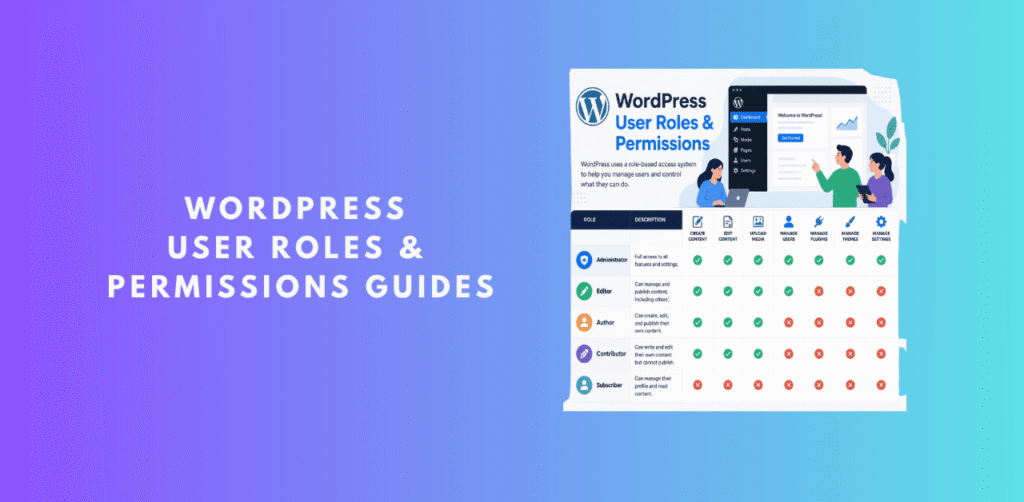
Out of the box, standard WordPress installations ship with five pre-configured user roles. Selecting the right user roles for wordpress team members prevents accidental site breakage and keeps unauthorized users away from sensitive data.
1. Administrator (Admin)
Full Access
The Administrator role holds absolute power over the website. When you install WordPress, your primary account is automatically created as an Administrator.
Best used for: Site owners, CTOs, or primary webmasters only.
2. Editor
Content Lead
The editor user role wordpress provides complete control over the content sections of your site, without granting access to core site settings, plugins, or themes.
Best used for: Editorial leads, content managers, and senior copywriters.
3. Author
Staff Writer
Authors can write, edit, publish, and delete their own posts. However, they cannot modify pages or edit content created by other users.
Best used for: Trusted internal staff writers and regular columnists.
4. Contributor
Guest Writer
The wordpress user role contributor is designed specifically for external guest bloggers or temporary writers who need to submit drafts for review.
Best used for: Freelance writers, guest authors, and new hires under evaluation.
5. Subscriber
Read Only
Subscribers can log in to your WordPress site and update their user profile (change password, update email), but they have zero administrative capabilities.
Best used for: Membership sites, newsletter subscribers, or sites requiring login to view content.
📊 Quick Capability Comparison Table
| Capability / Permission | Admin | Editor | Author | Contributor | Subscriber |
|---|---|---|---|---|---|
| Install Plugins & Themes | ✓ | ✕ | ✕ | ✕ | ✕ |
| Manage Site Settings | ✓ | ✕ | ✕ | ✕ | ✕ |
| Edit & Delete Others’ Posts | ✓ | ✓ | ✕ | ✕ | ✕ |
| Publish Blog Posts | ✓ | ✓ | ✓ | ✕ | ✕ |
| Write & Edit Own Drafts | ✓ | ✓ | ✓ | ✓ | ✕ |
| Upload Media Files | ✓ | ✓ | ✓ | ✕ | ✕ |
⚠️ What is the New User Default Role in WordPress?
When user registration is enabled on your website (found under Settings > General > Membership: Anyone can register), WordPress automatically assigns a role to every new sign-up.
Many site owners ask: what is new user default role in wordpress and why is it so critically important for security?
By default, the default user role in wordpress is set to Subscriber. This is the safest default setting because subscribers cannot modify content, install plugins, or alter site options.
CRITICAL SECURITY WARNING: Never set your default user role in wordpress to Administrator or Editor. If open registration is enabled and the default role is set to Administrator, anyone on the internet could register an account and gain full control of your website database within seconds!
How to Check or Change the Default Role:
- Log in to your WordPress admin panel as an Administrator.
- Navigate to Settings > General.
- Scroll down to the New User Default Role dropdown.
- Ensure it is set to Subscriber (or Customer if running WooCommerce).
- Click Save Changes at the bottom of the page.
🤖 The Limitations of Default WordPress Roles
While the built-in system works well for simple sites, growing teams quickly run into frustrating barriers:
👉 How to Manage User Roles & Permissions in WordPress
Now that you understand the default roles and tools available, let’s walk through common management tasks step-by-step.
Step 1: Adding a New User and Assigning a Role
- Go to Users > Add New User in your WordPress admin sidebar.
- Fill in the mandatory Username and Email fields.
- Set a secure password (or let WordPress generate one).
- In the Role dropdown, choose the appropriate role (e.g., Contributor for a guest writer).
- Click Add New User.
Step 2: Granting Temporary Permissions (With DominoRole)
- Navigate to DominoRole > Temporary Permissions.
- Select the target user from the search list.
- Choose the exact capability to grant (e.g.,
upload_filesorpublish_posts). - Use the datetime picker to select when the access should automatically expire (e.g., in 24 hours).
- Click Grant Permission. The user receives immediate access, which safely expires on schedule!
🛡️ 5 Essential Security Best Practices for WordPress User Roles
Always grant users the minimum level of access required to complete their tasks. If someone only writes posts, make them an Author or Contributor — never an Admin.
A site should rarely have more than 1–2 active Administrator accounts. Every additional Admin account increases your attack surface exponentially.
Perform quarterly audits of your user list. Demote or delete inactive accounts, former contractors, and employees who have left your team.
Require 2FA for all accounts with editing or admin capabilities. A compromised Editor or Admin password can shut down your entire site.
❓ Frequently Asked Questions
🏁 Conclusion
Mastering user roles and permissions wordpress is a foundational skill for anyone running a WordPress website. By pairing proper role assignment with security best practices, you can collaborate safely with writers, developers, and team members without compromising your site’s safety.
For site owners who need flexibility beyond standard defaults, DominoRole offers the ultimate modern toolkit — combining temporary access, one-click presets, smart plugin capability detection, and visual menu previews in one intuitive plugin.
Streamline user access, grant temporary permissions, and protect your website with DominoRole today.
