

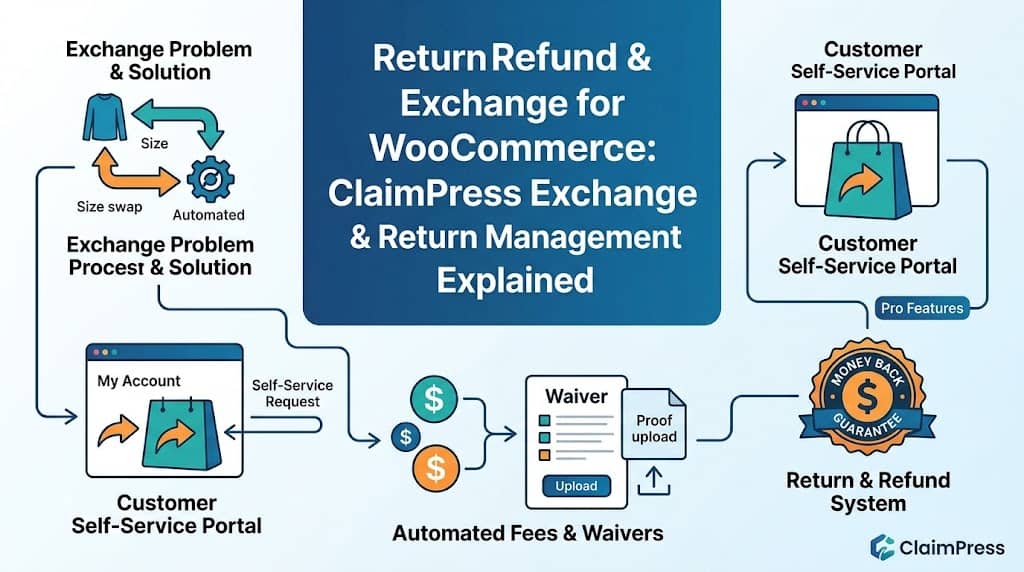
Product exchanges and refunds are inevitable in eCommerce. A customer orders a medium shirt and needs a large. Another customer receives a product that doesn’t meet their expectations. These situations happen daily in any store selling physical goods. The question isn’t whether they happen — it’s whether your store has a professional, organized process for handling them, or whether each request triggers a chaotic email thread that ends in manual PayPal refunds and frustrated customers.
ClaimPress provides both a dedicated return for WooCommerce system and a self-service Exchange Management module — two independent features that together form a complete return refund and exchange for WooCommerce solution. This article covers both the Exchange and Return/Refund modules in detail, including the Pro automated fee features that turn these cost centers into revenue-neutral operations.
The Exchange Problem in WooCommerce
WooCommerce has no native exchange system. When a customer wants to exchange a product — swap their size M for size L, or change from black to white — the standard workflow requires:
- Customer emails support requesting an exchange
- Admin manually creates a new order or manually processes the variant change
- Admin manually handles the return shipping instructions and refund/charge difference
- Admin manually tracks the exchange status across email threads
- If there’s an exchange processing fee, admin manually invoices the customer separately
For high-volume stores with fashion, footwear, apparel, or size-variable products, this manual process at scale is unmanageable. ClaimPress’s Exchange Management module brings structure, automation, and customer self-service to the entire exchange workflow.
How ClaimPress Exchange Management Works
ClaimPress’s Exchange module is enabled per product independently of the Warranty and Return modules. When enabled, it:
- Displays an exchange policy badge on the product page (e.g., “30-Day Exchange”) — building pre-purchase confidence
- Makes the product appear in the customer’s “Claimable Products” My Account tab as exchange-eligible during the configured window
- Provides a structured exchange request form where customers describe the issue and requested exchange
- Creates a claim in the admin dashboard tagged as an Exchange type — filterable separately from warranty and return claims
- Notifies the admin by email immediately when an exchange claim is submitted
Configuring Exchange Periods Per Product
Exchange eligibility windows are configured per product in the ClaimPress tab:
- Edit the WooCommerce product
- Click the ClaimPress tab in Product Data
- Under Exchange, check Enable
- Set the exchange period: number + unit (e.g., “30” + “Days” = 30-Day Exchange Window)
- Update the product
Available period units: Days, Weeks, Months, Years. A fashion store might configure a 60-day exchange on apparel, while a footwear store could set 30 days. Each product’s exchange eligibility is independently calculated from the order’s completion date — ClaimPress automatically shows or hides the exchange option in “Claimable Products” based on whether the window is still open.
Customer Exchange Request Flow
Log into My Account
Navigate to “Claimable Products”
Find Eligible Product
See exchange badge on the order item
File Exchange Claim
Describe requested variant and reason
Pay Fee (if applicable)
Pro: Automated fee payment before processing
Admin Approves
Exchange processed and confirmed
Automated Exchange Processing Fees (Pro)
In traditional exchange workflows, charging a shipping or processing fee for an exchange requires manual invoicing outside WooCommerce — a slow, awkward process that often results in fees being waived simply because chasing payment is too much work. ClaimPress Pro automates exchange fee collection entirely:
- Admin sets a default Exchange Processing Fee amount in ClaimPress Settings (e.g., $10)
- When a customer files an exchange claim, the system automatically creates a “Processing Fee” WooCommerce order
- The exchange claim enters “Pending Payment” status — locked until the fee is paid
- Customer pays via the store’s standard checkout (no external invoicing needed)
- Once payment is confirmed, the claim status automatically flips to “Paid” and notifies the admin it’s ready for review
Business Impact: Automated exchange fees recover processing and shipping costs that would otherwise be absorbed as losses. For a store handling 50 exchanges per month at $10 each, this feature generates $500/month in previously uncollected revenue with zero additional manual work.
Fee Waiver Request System (Pro)
Fee automation creates a fairness problem: what if the exchange is necessary because the store made an error — shipped the wrong color, wrong size, or a defective unit? Charging the customer an exchange fee for a mistake you made is both unfair and damaging to customer relationships. ClaimPress Pro’s Fee Waiver system handles this elegantly:
- When filing an exchange or return claim, the customer can select “Request Fee Waiver” if they believe the exchange is the store’s fault
- They are required to provide a description of the issue and upload photo/document proof of the store’s error (mandatory proof is automatically enforced for waiver requests)
- The admin reviews the waiver request and proof in the claim dashboard
- Approve Waiver: The claim proceeds at no charge to the customer
- Decline Waiver: Admin clicks one button — “Decline Waiver & Send Payment Link” — which instantly sends the customer an email with the processing fee payment link. No manual email writing required.
Return & Refund System
The return plugin WooCommerce component of ClaimPress is an independent module from the Exchange system — allowing stores to offer money-back guarantees with configurable return periods. It operates identically to the Exchange module at the configuration level:
- Enable per product: Check “Enable” under Return/Refund in the ClaimPress product tab
- Set return period: Configure the return window (e.g., “14 Days” or “30 Days”)
- Display on product page: A money-back guarantee badge automatically appears on the product page
- Customer portal: The product appears in the customer’s “Claimable Products” tab with a Return/Refund option during the eligible window
- Admin dashboard: Return claims are filterable separately from warranty and exchange claims for organized workflow management
The Return module supports the same per-product, per-period configuration flexibility as the Warranty and Exchange modules — a 30-day no-questions return policy on high-margin products, a 7-day return on consumables, and no return policy at all on digital goods — all managed from the same ClaimPress admin interface.
Automated Restocking Fees for Returns (Pro)
Returns are costly — restocking, inspection, and reselling returned goods costs money. ClaimPress Pro allows configuring an automatic Restocking Fee that is deducted from the customer’s refund calculation before the refund is issued:
- Set a default Restocking Fee amount (e.g., $15) in ClaimPress Settings
- When a return claim is filed, the system creates a “Restocking Fee” order automatically
- The return claim enters “Pending Payment” — the restocking fee must be paid before the return is processed
- This eliminates speculative returns where customers return items they’ve barely used purely for a full refund, knowing there’s no cost to the return
The automated restocking fee removes the need to manually invoice customers for return processing costs — a workflow that previously required separate invoicing tools or manual PayPal/Stripe requests outside the WooCommerce environment. Combined with the mandatory proof attachment feature, restocking fees and proof requirements together significantly reduce frivolous return requests.
Frequently Asked Questions
Can I enable exchanges on some products and returns on others?
Yes. The Exchange and Return/Refund modules in ClaimPress are completely independent and configured per product. You can enable Exchange only on clothing products (where size swaps are common), Return only on electronics (money-back guarantee), Warranty only on appliances (defect coverage), or any combination on any product. Each module has its own enable/disable toggle and independent duration setting.
Does the exchange fee automation work with all WooCommerce payment gateways?
Yes. ClaimPress Pro creates the exchange processing fee as a standard WooCommerce order. The customer pays through your store’s normal checkout flow using any payment gateway you have configured — Stripe, PayPal, bank transfer, or any other gateway. No special gateway configuration is required for fee automation.
How do customers file return/exchange requests if they didn’t create an account?
Guest customers use the ClaimPress guest claim form — add the [claimpress_guest_form] shortcode to any page. Guests enter their Order ID and email, verify their order, and file exchange or return claims without creating an account. Their claims appear in the same admin dashboard as logged-in customer claims and are treated identically in terms of status management and communication.
Automate Your WooCommerce Returns & Exchanges
ClaimPress is the complete return refund and exchange for WooCommerce plugin — customer self-service, automated fees, and full admin control.
