

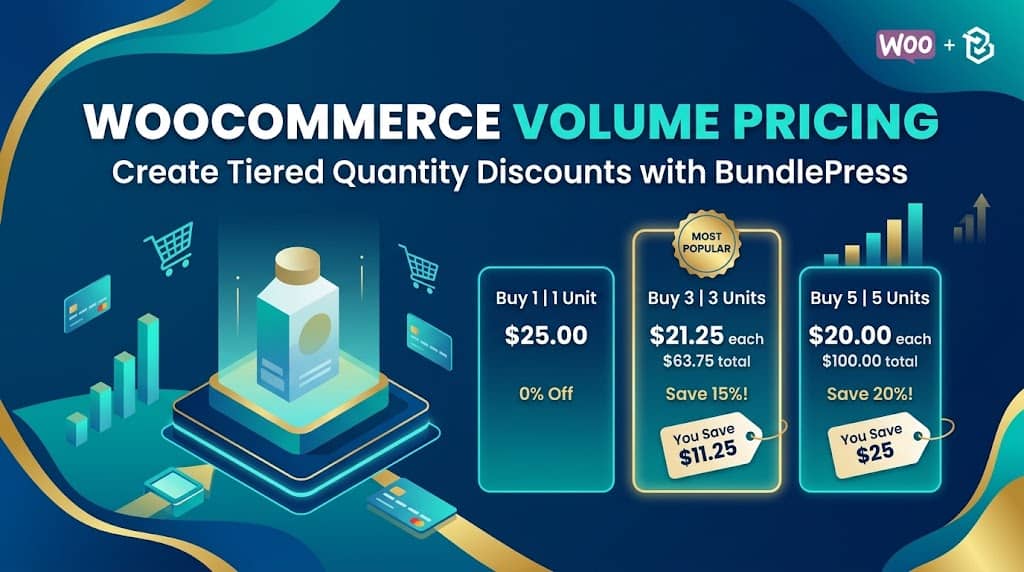
Volume pricing — offering tiered discounts based on quantity purchased — is one of the most effective strategies for increasing the average order value of your WooCommerce store. When customers see that buying 3 units is 15% cheaper per unit than buying 1, a significant portion will naturally select the higher quantity. This creates a win-win: the customer gets a better deal per unit, and your store’s revenue per transaction increases without any additional customer acquisition cost.
WooCommerce has no native volume pricing system. Setting up quantity-based discounts without a plugin requires custom code or WooCommerce extensions that are complex to configure. BundlePress’s Volume Pricing bundle type makes this straightforward — a visual, intuitive tier builder that displays beautifully on the product page and correctly calculates all discount amounts, including for products already on sale. This guide explains exactly how to create volume pricing bundles in WooCommerce using BundlePress.
What Is Volume Pricing in WooCommerce?
Volume pricing (also called tiered pricing, quantity discounts, or bulk pricing) is a pricing strategy where the per-unit price decreases as the quantity increases. In BundlePress, a Volume Pricing bundle presents multiple quantity tiers on a product page as selectable options:
| Tier | Quantity | Discount | Price per Unit | Total |
|---|---|---|---|---|
| Buy 1 | 1 | 0% | $25.00 | $25.00 |
| Buy 2 | 2 | 10% | $22.50 | $45.00 Save $5 |
| Buy 3 🏆 Most Popular | 3 | 15% | $21.25 | $63.75 Save $11.25 |
| Buy 5 | 5 | 20% | $20.00 | $100.00 Save $25 |
The customer selects the tier they want, and the total price updates instantly. This visual presentation of savings at each quantity level is a powerful conversion driver — customers can see exactly how much they save by buying more.
Why Volume Discounts Increase Average Order Value
The psychology behind volume pricing is well-documented in eCommerce research: when customers are shown a clear per-unit savings for buying more, they frequently upgrade to higher quantities — even for products they might only need one of. Several factors drive this behavior:
- Loss aversion: Not getting the discount feels like leaving money on the table
- Stock-up mentality: Consumable products (supplements, coffee, skincare) are natural candidates for bulk purchasing when discounted
- Gift purchasing: “I could use one for me and give one as a gift”
- Perceived value: Higher-quantity tiers feel like a smarter purchase decision
Volume pricing works best for consumable goods (food, supplements, beauty), commodity items (cleaning products, office supplies), seasonal goods where customers buy ahead, and gift-oriented products. It is less effective for high-consideration purchases where quantity 1 is the natural purchase unit (electronics, furniture).
How to Create a Volume Pricing Bundle in WooCommerce
Step 1: Select Volume Pricing Bundle Type
Go to BundlePress → Create New Bundle. Select Volume Pricing (Tiered Discount) as the bundle type. Enter a name for the bundle.
Step 2: Select the Target Product
Use the Product Picker to select the product this volume pricing bundle applies to. Volume bundles are associated with a specific product — the tiers define different quantity options for purchasing that same product at different prices.
Step 3: Configure Pricing Tiers
In the Pricing & Discounts section, add your tiers. For each tier, specify:
- Quantity: How many units this tier represents (e.g., 1, 2, 3, 5, 10)
- Discount: Percentage discount applied for this quantity (e.g., 10%, 15%, 20%)
- Popular badge: Mark one tier as “Most Popular” to visually highlight the recommended option
- Default selected: Which tier should be pre-selected when the customer first loads the page
You can add as many tiers as needed. Common structures: 3 tiers (Buy 1, Buy 3, Buy 5), 4 tiers (Buy 1, Buy 2, Buy 3, Buy 5), or a simple 2-tier BOGO-adjacent (Buy 1, Buy 2).
Step 4: Assign to Product Page & Save
Assign the volume bundle to the product page and save. The volume pricing widget renders instantly on the product page via server-side PHP (no loading skeleton or FOUC — improved in BundlePress v1.4.3), ensuring customers see the pricing tiers immediately on page load.
Configuring Volume Discount Tiers
Each volume pricing tier has independent configuration. When setting discount percentages, BundlePress calculates the “You Save” amount based on the product’s true regular price — not a potentially discounted sale price. This means:
- If a product’s regular price is $30 and it’s currently on sale for $25, the “You Save” calculation uses $30 as the baseline — the bundle discount is additional savings on top of the existing sale
- For the “Buy 1” tier of a product already on sale, BundlePress shows the crossed-out regular price alongside the sale price — making the existing discount visible even at quantity 1
- The “You Save” for higher-quantity tiers correctly stacks the bundle discount on top of the sale price, calculating total savings from the original regular price
Popular Badge & Default Selected Tier
Two psychological conversion features are built into volume pricing tiers:
- Popular Badge: Mark one tier with a “Most Popular” badge (or any custom text). This badge appears visually on the tier card with customizable background and text colors. Marking a middle tier (e.g., Buy 3 out of 1/3/5) as “Most Popular” nudges customers toward it — a classic anchoring technique.
- Default Selected Tier: Configure which tier is pre-selected when the customer first sees the page. This is powerful: customers often purchase the default selection without changing it. Setting the “Buy 3” tier as default (instead of “Buy 1”) significantly increases the proportion of customers purchasing at that higher quantity. The admin-set default always overrides any browser-stored session selection, ensuring consistent behavior.
Custom Badge Labels (Pro)
BundlePress Pro allows replacing the default “You Save X%” badge text on each volume tier with a custom marketing label. Instead of a calculated percentage, display:
- “Best Value” — instead of “Save 20%”
- “Total Savings: $25” — emphasizing dollar amount over percentage
- “Family Pack” — naming the tier for its use case rather than its discount
- “🆕 Limited Offer” — creating urgency for a specific tier
Price Display & “You Save” Calculation
BundlePress’s volume pricing widget handles WooCommerce currency formatting correctly — including localized thousand separators and decimal points for international stores (e.g., German locale uses period for thousands and comma for decimals, which are correctly applied in bundle price displays). The price display for each tier shows:
- Crossed-out original price (struck-through regular price)
- Bundle/discounted price in a prominent color
- “You Save $X” callout (amount or percentage saved versus buying individually)
- Total price for the tier quantity
Grid Layout for Volume Bundles
BundlePress v1.3.9 set Grid View as the default layout for Volume Discount bundles — a deliberate UX decision because volume tiers are best presented as side-by-side comparison cards rather than a vertical list. In Grid layout, each quantity tier appears as a selectable card showing quantity, per-unit price, discount badge, and total — like a pricing table that customers scan horizontally to choose their tier.
The free version supports up to 2 columns in Grid. BundlePress Pro unlocks 3 and 4 column layouts for stores with more pricing tiers. The Grid layout is fully mobile-responsive — columns collapse to 1-column on small screens while maintaining the card presentation for each tier.
Variable Products & Volume Pricing (Pro)
For stores selling products with size, color, or model variations, BundlePress Pro adds variation selection to the volume pricing widget. Customers first select their product variation (e.g., “Black / Large”), then choose their quantity tier. Volume pricing correctly detects the variation’s sale price vs regular price for accurate “You Save” calculations — including proactive price detection that shows correct crossed-out prices and badges immediately on page load before variations are selected.
Frequently Asked Questions
How many volume pricing tiers can I create per product?
There is no hard limit on the number of volume pricing tiers in BundlePress. You can create as many tiers as make sense for your product — though 3 to 5 tiers is the typical range for optimal UX. Too many tiers can create decision paralysis; too few miss the psychological anchoring effect of having a clearly better option.
Can I use volume pricing alongside a WooCommerce sale price?
Yes. BundlePress volume pricing is correctly calculated against the product’s regular price even when a WooCommerce sale price is active. The bundle discount is applied as additional savings from the regular price, correctly showing the total savings versus the original price. For example, if a product is regularly $30, on sale for $25, and a volume tier adds 10% off — the tier price is $22.50 and the “You Save” correctly shows $7.50 vs the sale price or $7.50+$2.50 = $10 vs the regular price depending on configuration.
Add Volume Discounts to Your WooCommerce Products
BundlePress’s volume pricing is the easiest WooCommerce bundle discount plugin — tiered discounts, popular badges, default tier selection, and grid layouts.
